Workspace
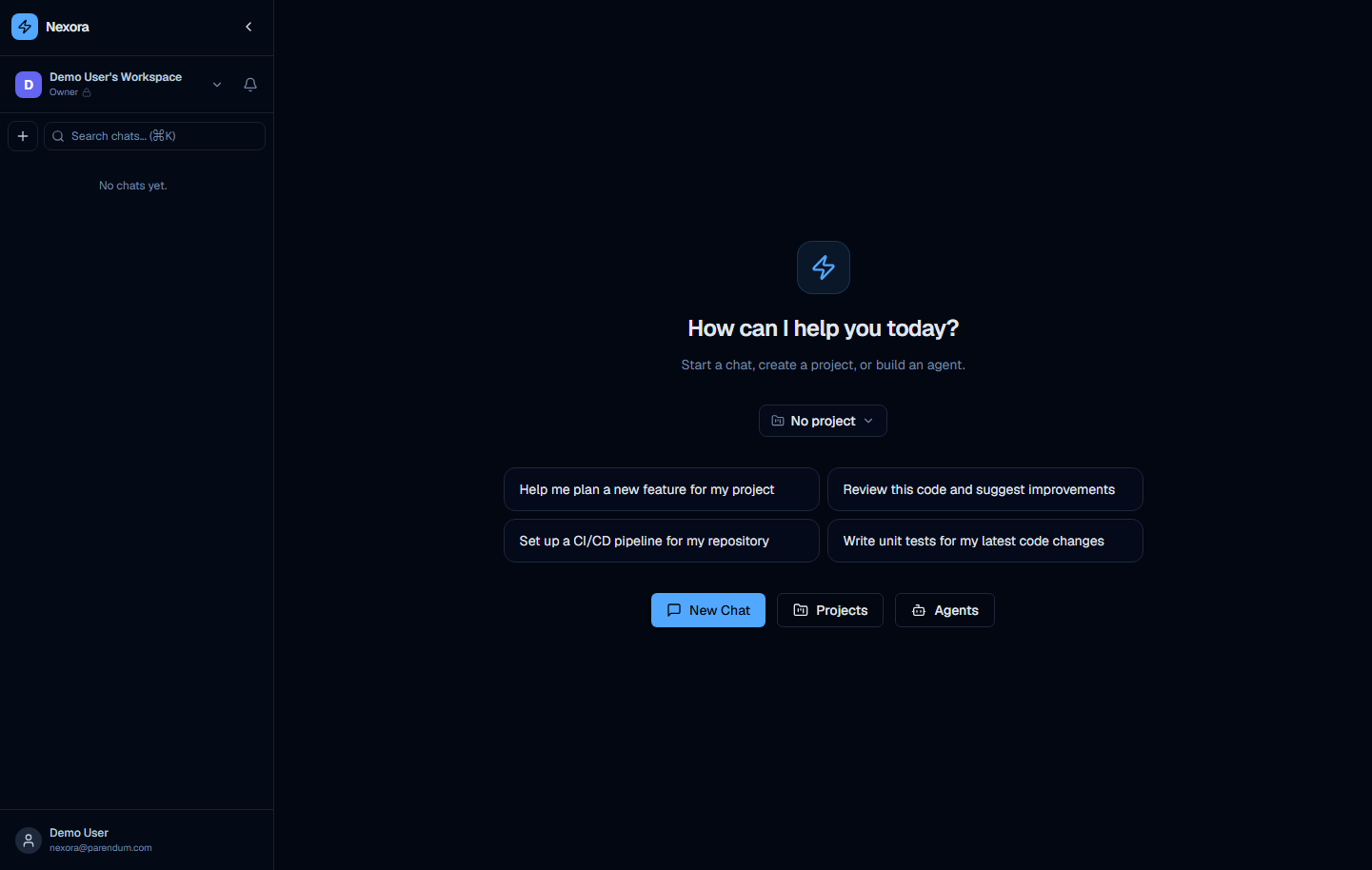
The workspace is the root of the Nexora interface. It contains the persistent sidebar on the left and a context-dependent main content area on the right. When no chat or section is open, the main area shows the workspace home with quick-start actions.
Sidebar
The sidebar persists across all sections. It can be collapsed to a narrow icon rail using the collapse toggle.
Logo and collapse toggle
The top of the sidebar shows a bolt icon alongside the “Nexora” wordmark. To the right is a collapse toggle — a chevron-left button. Clicking it collapses the sidebar to a narrow icon rail; a chevron button at the top of the collapsed rail expands it again.
Org switcher
Directly below the logo row is the org switcher button. It displays:
- A rounded avatar showing the organization’s emoji icon, or the first letter of its name on a colored background
- The organization name
- The current user’s role (e.g. “owner”), with a small lock icon for personal orgs
- A chevron indicating the button is a dropdown
To the right of the org switcher is a bell icon (notifications button) for in-app notifications.
Clicking the org switcher opens a dropdown that lists all organizations the current user belongs to (with member counts), plus New organization and Organization settings options.
New session and search
Below the org switcher (in the chat view) are two controls:
- New session button — a
+icon button that opens the workspace home (/chat) so you can pick a project scope and start a fresh chat - Search chats field — a text input labeled “Search chats… (⌘K)”. Typing here filters the chat list by title and runs a live message search; pressing Enter opens the full Search page (
/search) for the query. ⌘/Ctrl+K focuses this field.
Chat list
The chat list occupies the main body of the sidebar below the search field. Chats are grouped by project (with a separate Personal group for chats not tied to any project), under expandable group headers — not by date. Sub-agent chats nest under their parent chat.
Each chat item in the list shows:
- A chat icon (speech bubble, or a people icon for shared chats)
- The truncated chat title (derived from the first message)
- On hover: small stats (sub-chat count, tool calls, token total) and a delete button (trash icon)
Clicking a chat item opens that chat in the main content area.
User button
At the very bottom of the sidebar is the user button. It displays:
- A circular avatar icon
- The user’s full name
- The user’s email address
Clicking the user button opens the user dropdown menu.
User dropdown menu
The user dropdown appears above the user button, anchored to the bottom-left of the screen.
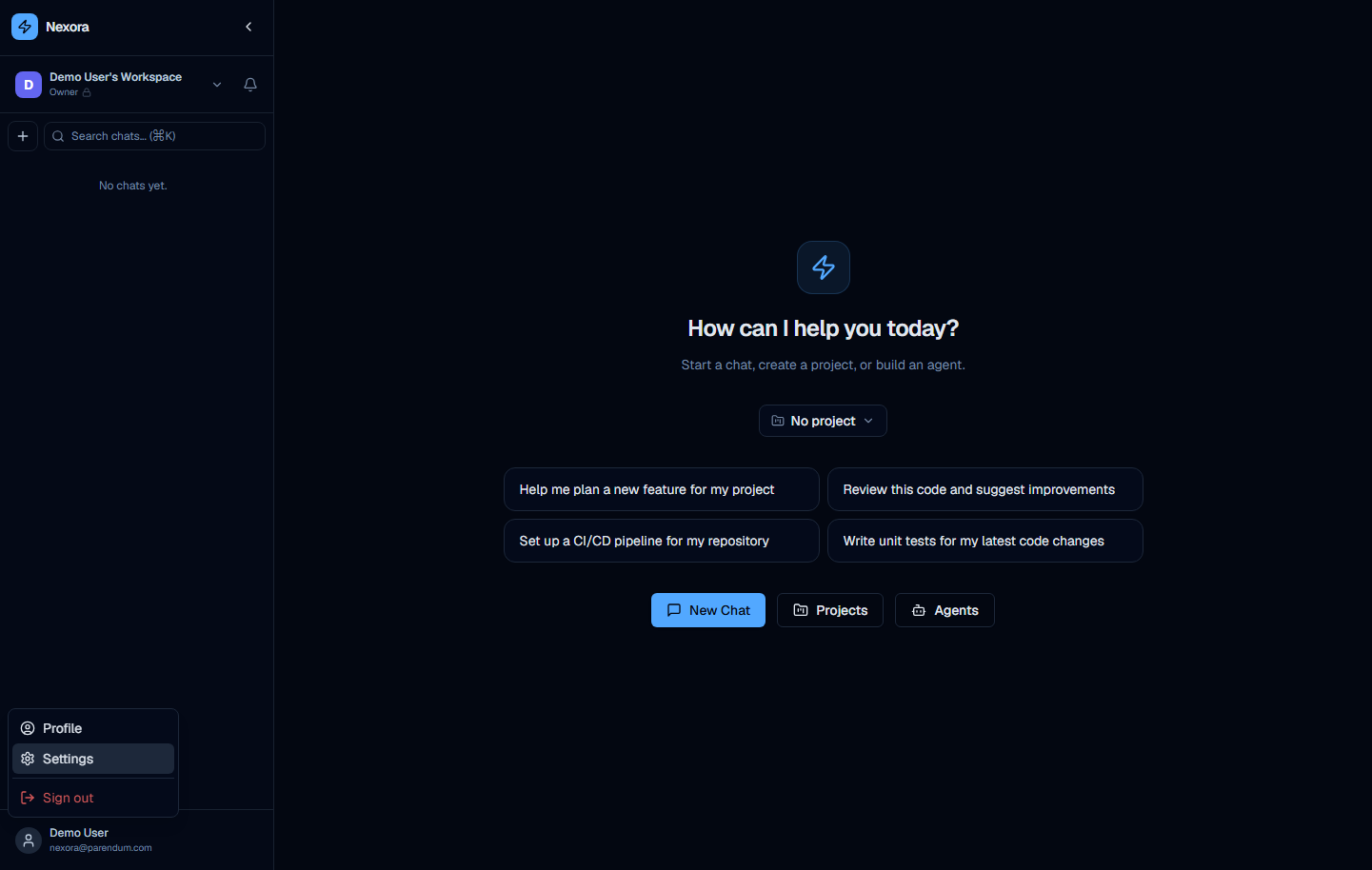
The menu contains:
| Item | Icon | Behavior |
|---|---|---|
| Profile | Person icon | Navigates to /profile — user profile and 2FA settings |
| Settings | Gear icon | Navigates to /settings — provider accounts, models, integrations |
| Advanced / Back to Chats | Grid icon | (Advanced UI mode only) Toggles the sidebar between the chat list and the management nav panel |
| Sign out | Exit icon (red) | Signs the current user out and redirects to the login page |
The Sign out item uses red text and a red icon to distinguish it as a destructive action.
Workspace home (empty state)
When no chat is open, the main content area displays the workspace home screen.
Center content
The center of the main area shows:
- The Nexora bolt icon (large, decorative)
- “How can I help you today?” — main heading
- “Start a chat, create a project, or build an agent.” — subtitle
Project scope selector
Below the heading is a “No project” dropdown button. This is the project scope selector — it lets you set the active project context before starting a chat. Chats started with a project selected are automatically associated with that project and have access to its context.
Quick-start suggestion buttons
Four pre-written suggestion buttons provide one-click starting points for common developer workflows:
- “Help me plan a new feature for my project”
- “Review this code and suggest improvements”
- “Set up a CI/CD pipeline for my repository”
- “Write unit tests for my latest code changes”
Clicking any suggestion button creates a new chat with that text pre-filled and submitted as the first message.
Action buttons
Three primary action buttons sit below the suggestions:
| Button | Style | Action |
|---|---|---|
| New Chat | Blue, primary | Creates a new empty chat and focuses the input |
| Projects | Secondary | Navigates to /projects |
| Agents | Secondary | Navigates to /agents |
Navigating the interface
Nexora has a simple and an advanced UI mode. In advanced mode the sidebar exposes a management nav panel (toggle it via Advanced in the user dropdown) listing every management section. In simple mode the sidebar focuses on the chat list and an active-agents panel; reach other sections via direct URL or contextual buttons.
The management nav panel (advanced mode) links to:
| URL | Section |
|---|---|
/tasks | Tasks |
/issues | Issues |
/proposals | Proposals |
/projects | Projects kanban board |
/channels | Telegram channels |
/schedules | Schedules |
/agents | Agents (management and builder) |
/personas | Personas |
/skills | Skills |
/tools | Tools |
/mcps | MCP Servers |
/knowledge-bases | Knowledge Bases |
/memory | Memory |
/org | Organization |
Other reachable routes include /chat (chat workspace), /profile (user profile), /settings (provider accounts and settings), and /search (full-text search).
Switch between simple and advanced UI mode to control how much the sidebar surfaces. The “Agents” / “Projects” buttons on the workspace home and the “Settings” / “Profile” items in the user dropdown are always available regardless of mode.
Collapsing the sidebar
Click the collapse toggle
Click the chevron-left button at the top-right corner of the sidebar. The sidebar animates to a narrow icon rail, showing only icons without labels.
Navigate in collapsed mode
All sidebar functionality remains available in collapsed mode. Hover over icons to see tooltips. The user button at the bottom still opens the dropdown menu.
Expand the sidebar
Click the chevron-right button (which replaces the chevron-left in collapsed state) to restore the full sidebar.
Sidebar collapse state is persisted per browser — refreshing the page maintains the collapsed or expanded state.