Settings
The Settings page is where you configure AI provider accounts, define model profiles, build fallback chains, and connect external integrations. All per-user and per-organization AI configuration lives here.
Accessing settings
Open the user menu
Click the user button at the bottom-left of the sidebar. The user dropdown menu appears above the button.
Click Settings
Click the Settings item (gear icon) in the dropdown. It highlights in blue on hover.
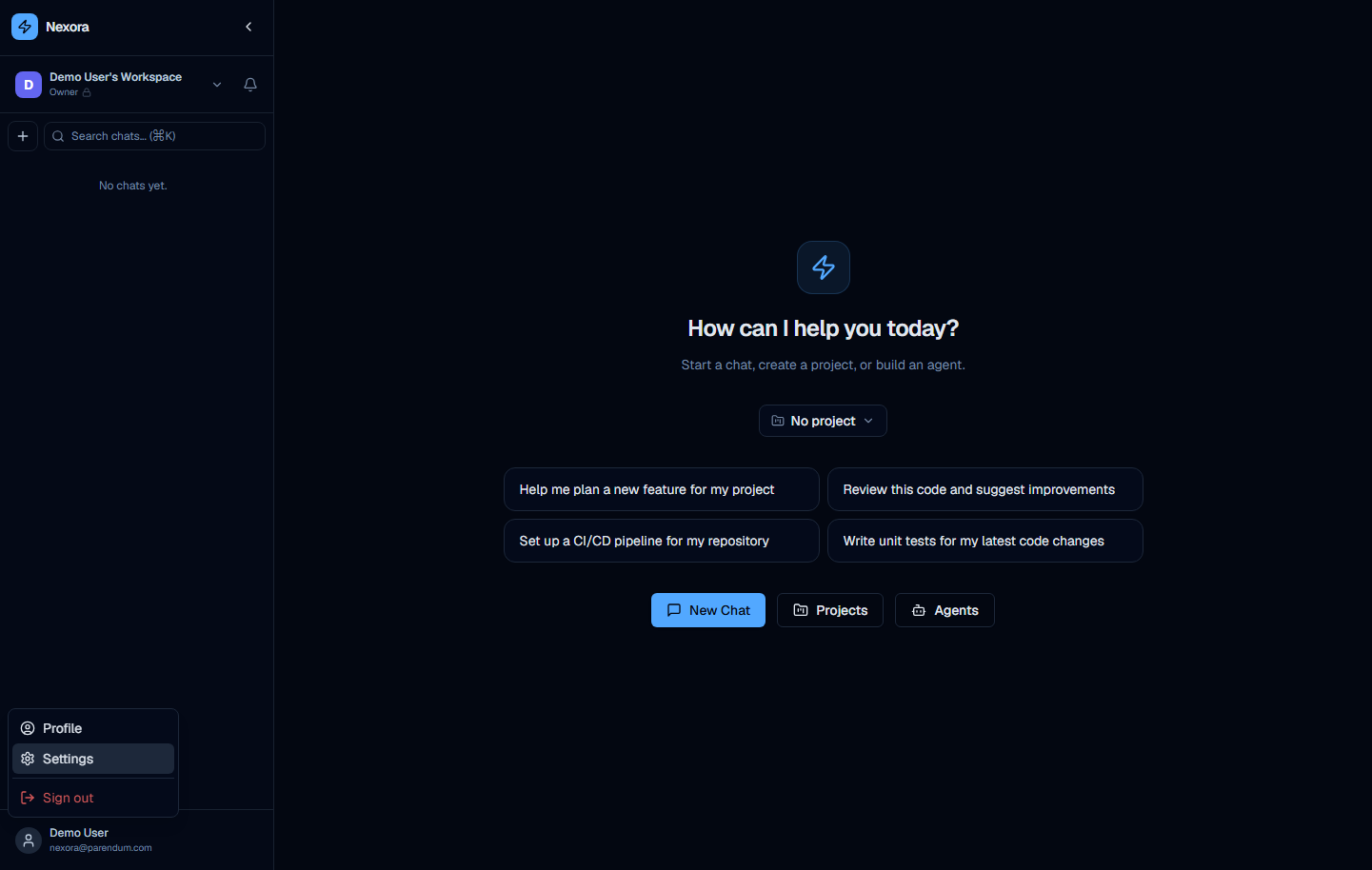
Settings navigates to /settings.
Settings tabs
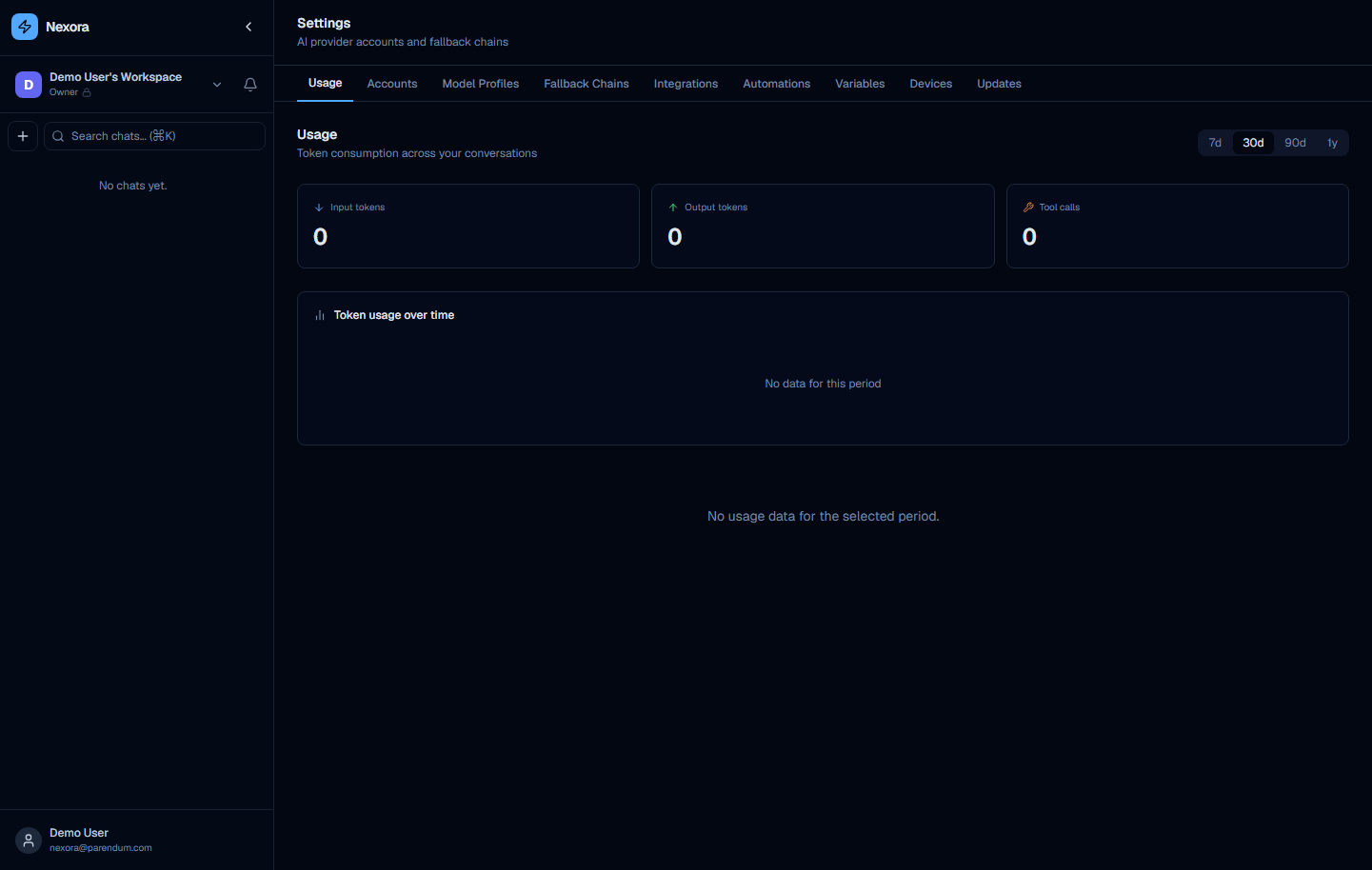
The Settings page has tabs across the top. The default tab when first opening Settings is Usage.
In order, the tabs are: Usage, Accounts, Model Profiles, Fallback Chains, Provider Types, Integrations, Automations, Variables, Devices, Updates, Seed Library, and Backup. Provider Types and Seed Library appear only in Advanced UI mode, and Backup is shown only to superusers; the rest are always available.
Usage tab
The Usage tab gives a high-level view of AI consumption across the current organization for a selected time period.
Period selector
Four buttons let you select the time window for the stats:
| Button | Period |
|---|---|
| 7d | Last 7 days |
| 30d | Last 30 days (default) |
| 90d | Last 90 days |
| 1y | Last 12 months |
Stat cards
Three stat cards display aggregate totals for the selected period:
| Card | Icon | Description |
|---|---|---|
| Input tokens | Input icon | Total tokens sent to LLM providers |
| Output tokens | Output icon | Total tokens generated by LLM providers |
| Tool calls | Tool icon | Total number of tool invocations by agents |
Usage chart
Below the stat cards, a “Token usage over time” chart renders a time-series graph of token consumption for the selected period. The chart uses bars or a line plot depending on the granularity of the selected window.
Empty states:
- No data at all: “No data for this period”
- Chart area with no data points: “No usage data for the selected period.”
Usage data is available for Claude, Gemini, and OpenAI-compatible providers. Providers that do not return usage metadata in their stream responses will not contribute to these counts.
Accounts tab
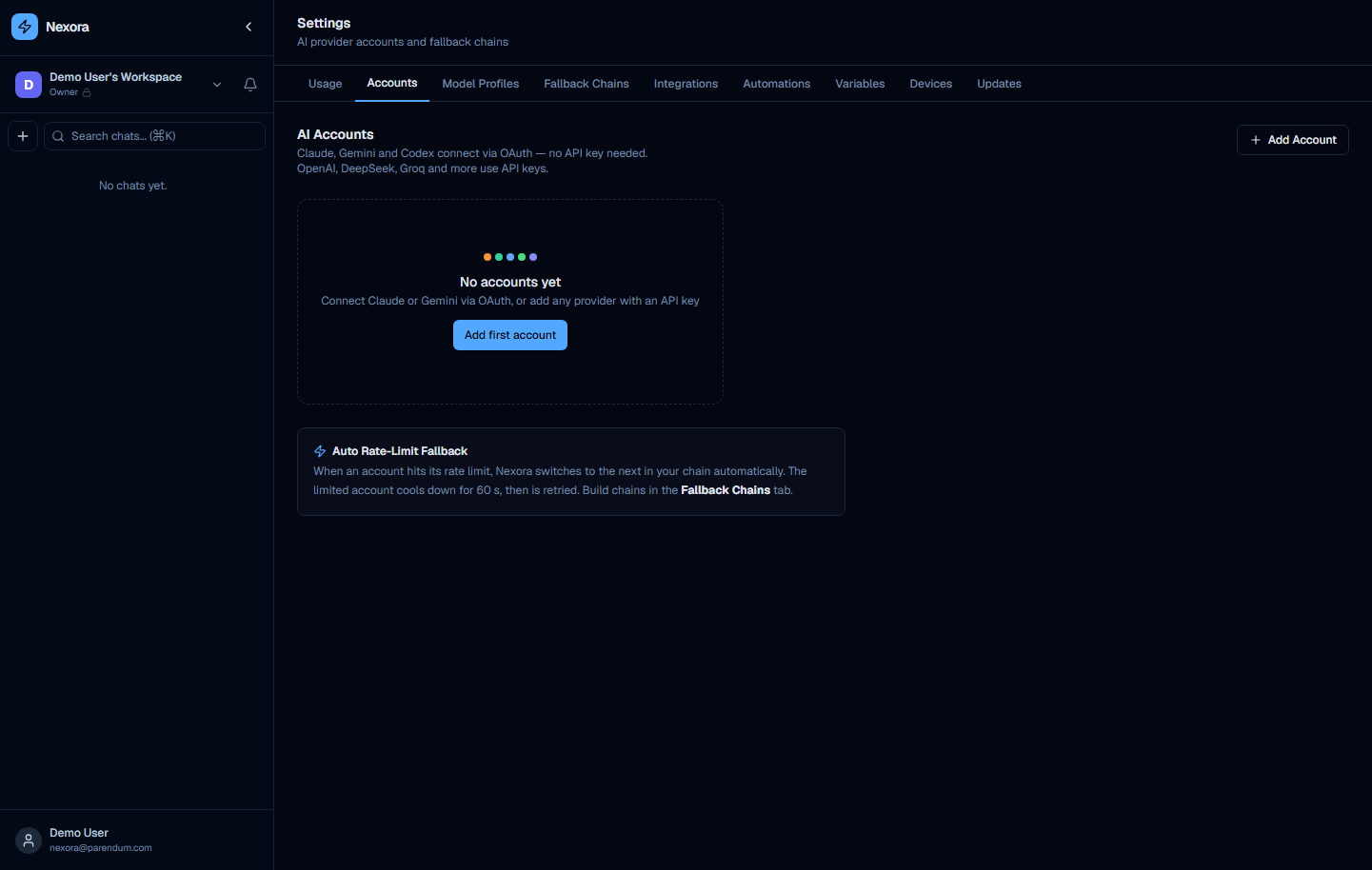
The Accounts tab is where you connect AI providers. Nexora supports both OAuth-based providers and API-key providers.
Header
The tab header reads:
AI Accounts Claude, Gemini and Codex connect via OAuth — no API key needed. OpenAI, DeepSeek, Groq and more use API keys.
An Add Account button sits in the top-right corner of the tab.
Empty state
When no accounts are configured, the tab shows:
- Colorful provider logo dots (visual indicator of supported providers)
- “No accounts yet” heading
- “Connect Claude or Gemini via OAuth, or add any provider with an API key” subtitle
- “Add first account” button (equivalent to the Add Account button in the header)
Auto Rate-Limit Fallback info card
Regardless of whether accounts exist, an informational card is shown:
Auto Rate-Limit Fallback When an account hits its rate limit, Nexora switches to the next in your chain automatically. The limited account cools down for 60 s, then is retried. Build chains in the Fallback Chains tab.
Add Account modal
Clicking Add Account or Add first account opens the Add Account modal.
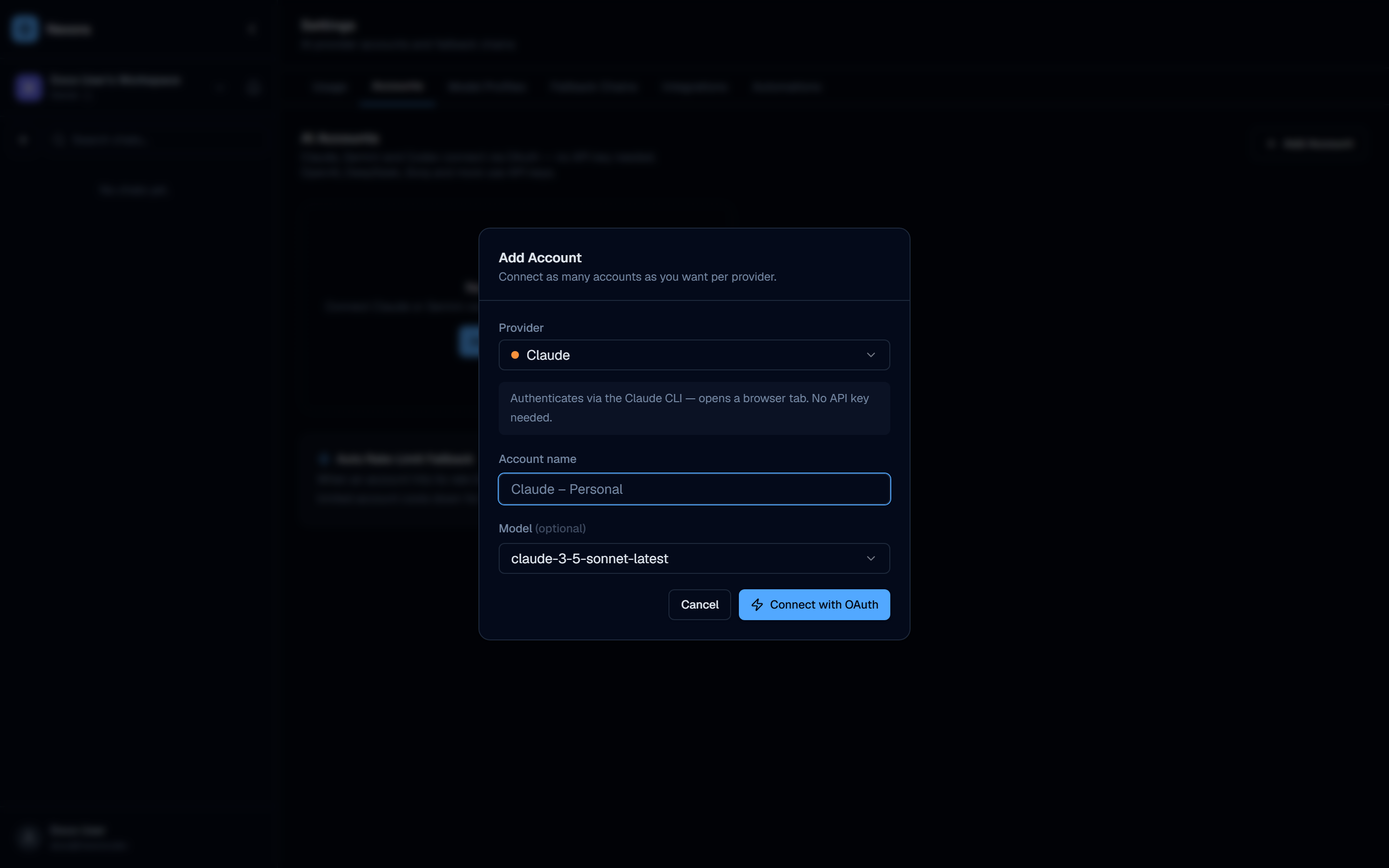
The modal contains a Provider dropdown that defaults to Claude (shown with an orange dot).
OAuth providers (Claude, Gemini)
For Claude and other OAuth providers, the modal shows:
- An info box: “Authenticates via the Claude CLI — opens a browser tab. No API key needed.”
- Account name field (placeholder: “Claude – Personal”) — an editable label to identify this account
- Model dropdown — the default model to use with this account (e.g. for Claude:
claude-opus-4-7,claude-sonnet-4-6,claude-haiku-4-5-20251001) - Connect with OAuth button — clicking this opens a browser tab to complete the OAuth authorization flow
After authorizing in the browser, the modal closes and the account appears in the accounts list.
Model Profiles tab
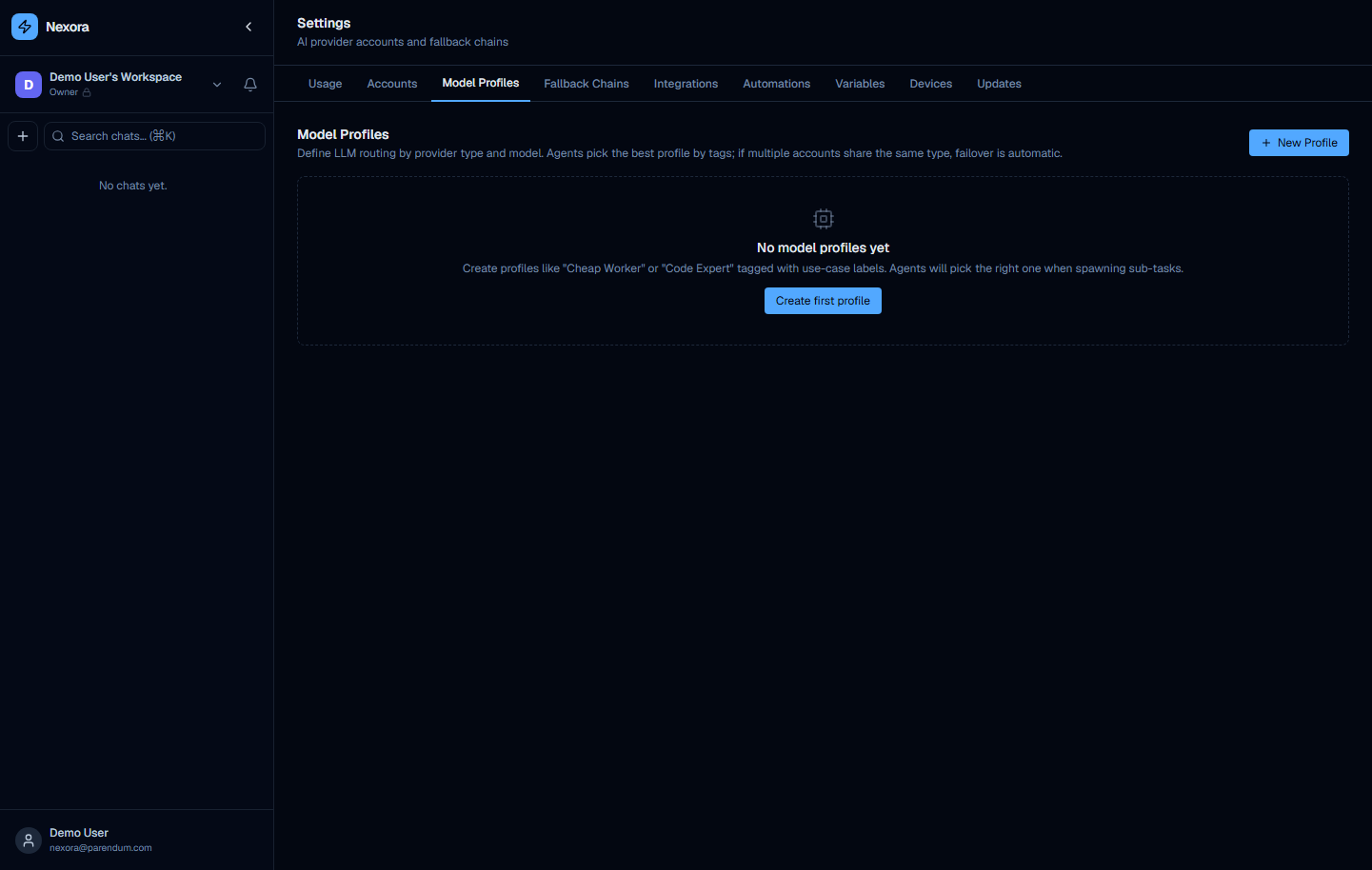
Model Profiles let you define named LLM configurations that can be assigned to agents. A profile captures:
- A name and optional description and tags
- A route mode — either a specific provider type + model, or a fallback chain
- A priority and an active toggle
Profiles are referenced by agents in their configuration. Changing a profile’s settings immediately affects all agents using that profile.
Fallback Chains tab
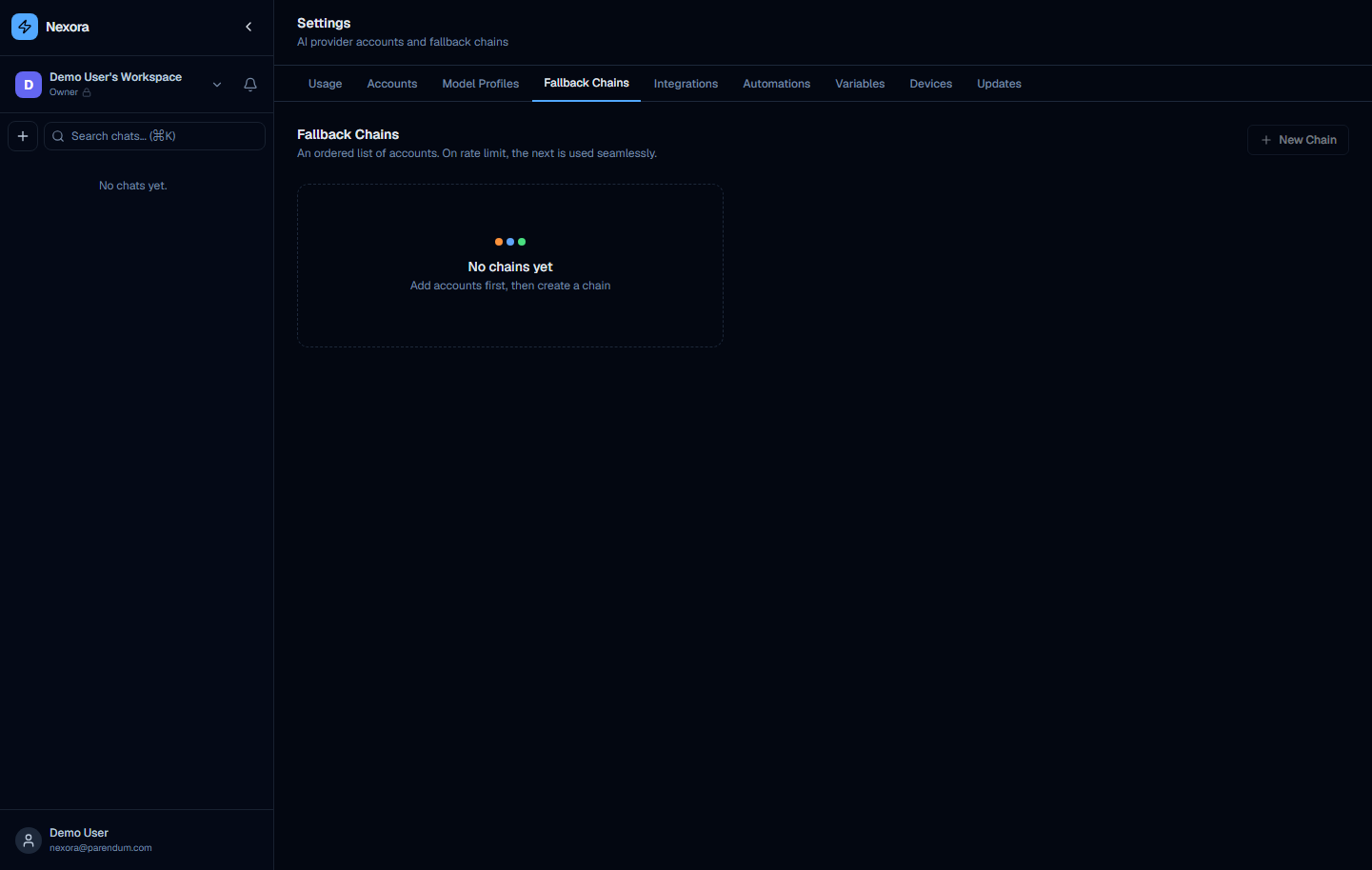
Fallback Chains define the order in which Nexora tries provider accounts when a request fails due to rate limiting or provider errors.
How fallback works
- Nexora sends the request to the first account in the chain.
- If that account returns a rate-limit error, Nexora immediately retries with the next account.
- The rate-limited account is placed in a 60-second cooldown. After cooldown it is re-added to the rotation.
- If all accounts are exhausted, the request fails with an error.
Building a chain
- Create a chain with New Chain, then click Add step to add a provider/model step.
- Use the move-up arrow to reorder steps — the topmost step is tried first.
- Click the trash button next to a step to remove it from the chain.
For maximum reliability, add accounts from multiple providers (e.g. Claude + Gemini + OpenAI). This means rate limits on one provider won’t block all requests.
Integrations tab
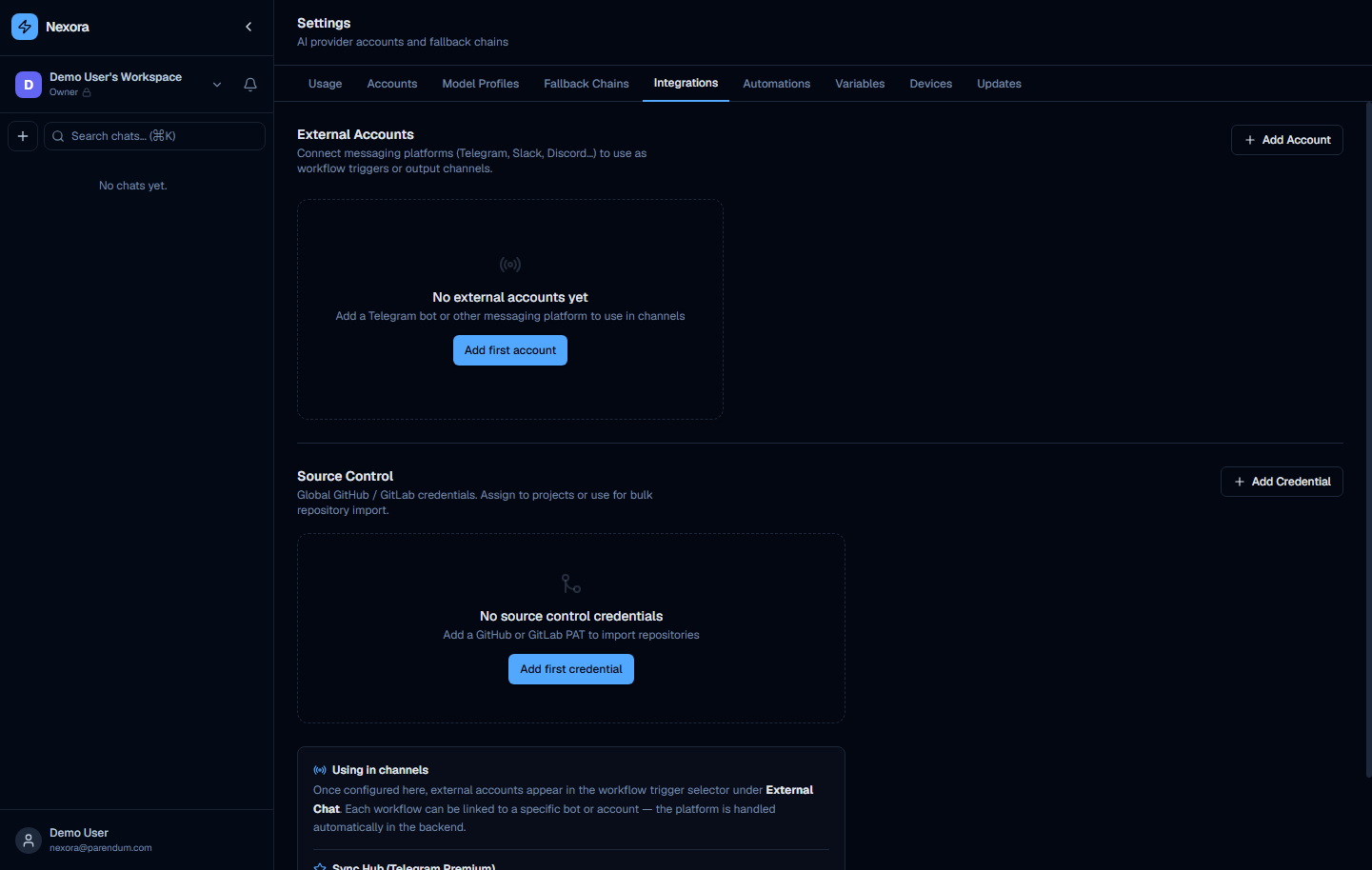
The Integrations tab (headed External Accounts) connects Nexora to external services that agents can interact with.
| Integration | Status |
|---|---|
| Telegram | Live — connect a bot token so agents can send and receive Telegram messages |
| Slack | Coming soon |
| Discord | Coming soon |
| Coming soon |
A separate Git credentials section on this tab stores GitHub/GitLab tokens used by the git read/write skills.
Each integration card shows the service name, its current status, and a button to connect or configure it.
You can also connect a Telegram bot directly from the Channels page (/channels), which collects the bot token in its New Channel modal and starts the bot for you.
Automations tab
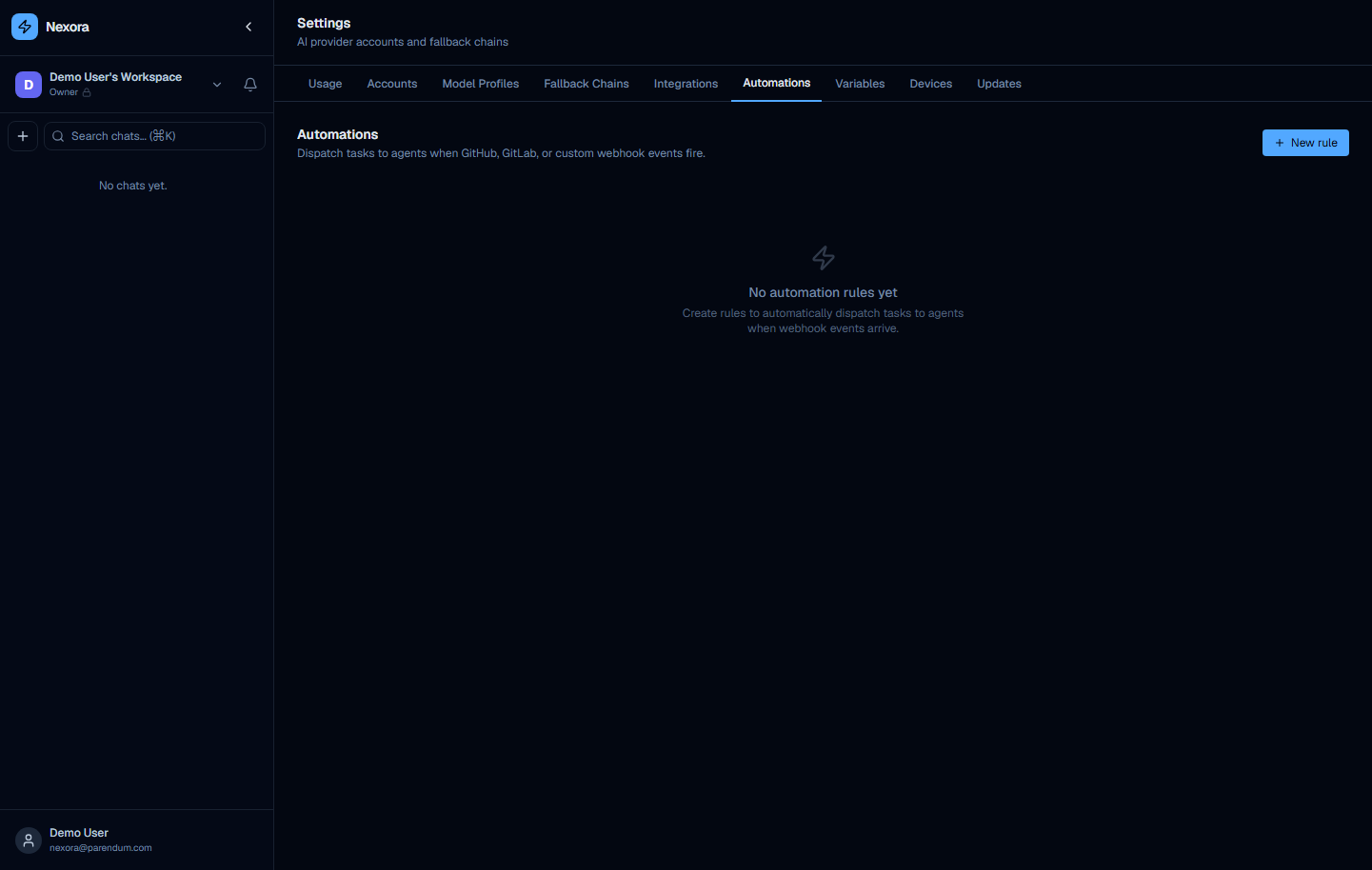
The Automations tab lets you configure rule-based automated behaviors that trigger agents on a schedule or in response to events.
Automation rules define:
- A trigger — what causes the automation to fire (e.g. a schedule, an incoming webhook, a Telegram message matching a pattern)
- An agent — which agent handles the trigger
- Parameters — any additional context or instructions passed to the agent when it fires
For time-based automations, also see /schedules — the Schedules section provides a dedicated interface for managing cron-style scheduled agent runs with full run history.
Variables tab
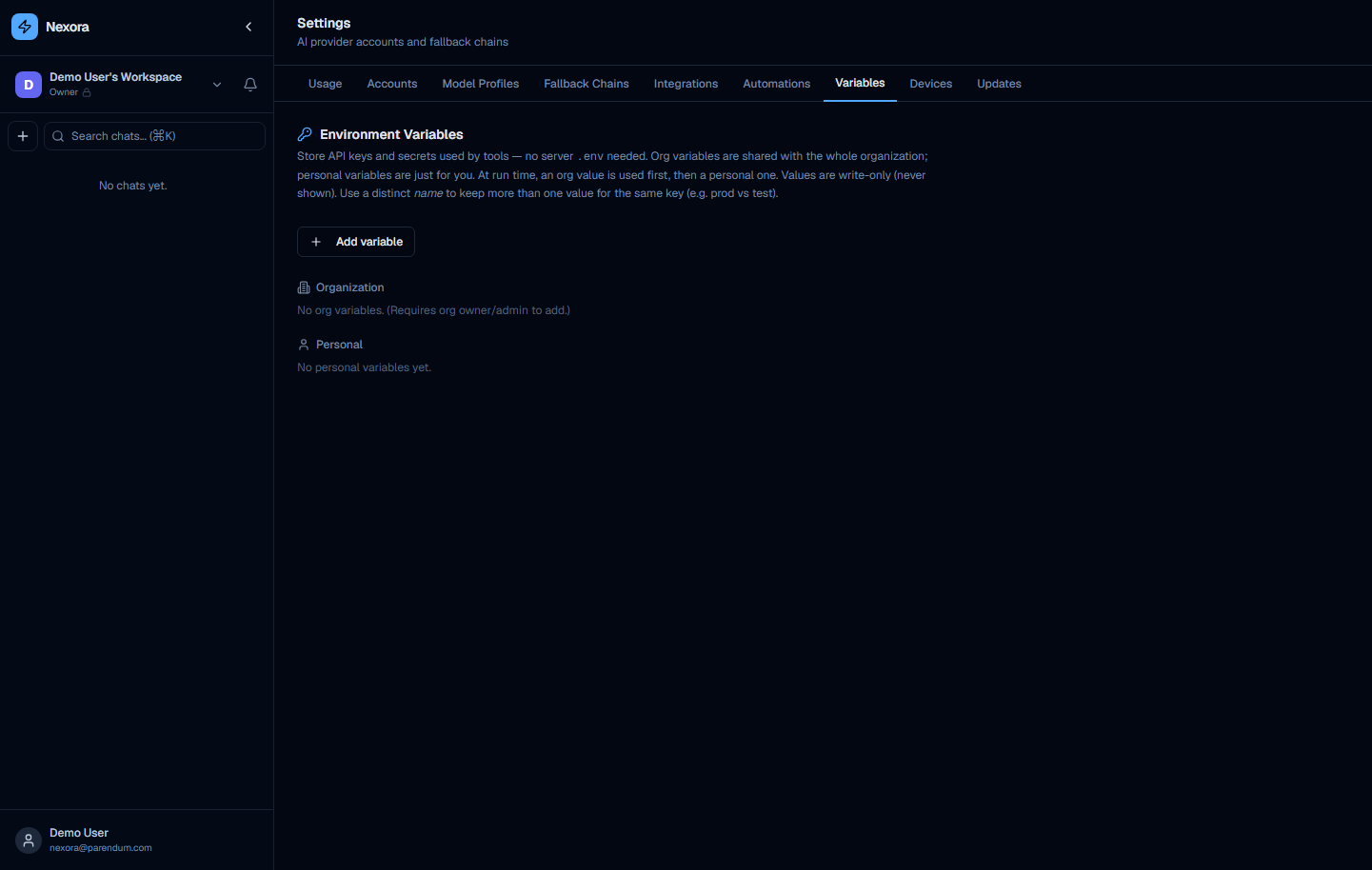
The Variables tab stores API keys and secrets that tools need (e.g. STRIPE_SECRET_KEY) without editing a server .env file. Values are encrypted at rest and write-only — they are never displayed again after saving; you can only replace or delete them.
Scopes
| Scope | Who can see it | Who can add it |
|---|---|---|
| Organization | Everyone in the organization | Org owner / admin |
| Personal | Only you | Any user |
At run time a variable is resolved org-first, then personal — an org value with a given key shadows a personal value with the same key unless you remove the org one.
Adding a variable
Click “Add variable”
Choose the scope
Select Personal or Organization (and, for org scope, which organization).
Fill in the fields
- KEY — the environment variable name tools read (e.g.
STRIPE_SECRET_KEY) - name — a label to tell apart multiple values for the same key (defaults to the key). Use this to keep, say, a prod and a test value for one key.
- value — the secret itself (write-only)
- description (optional)
Save
Because values are write-only, there is no “reveal” action — to rotate a secret, save a new value over it or delete and re-add it.
Devices tab
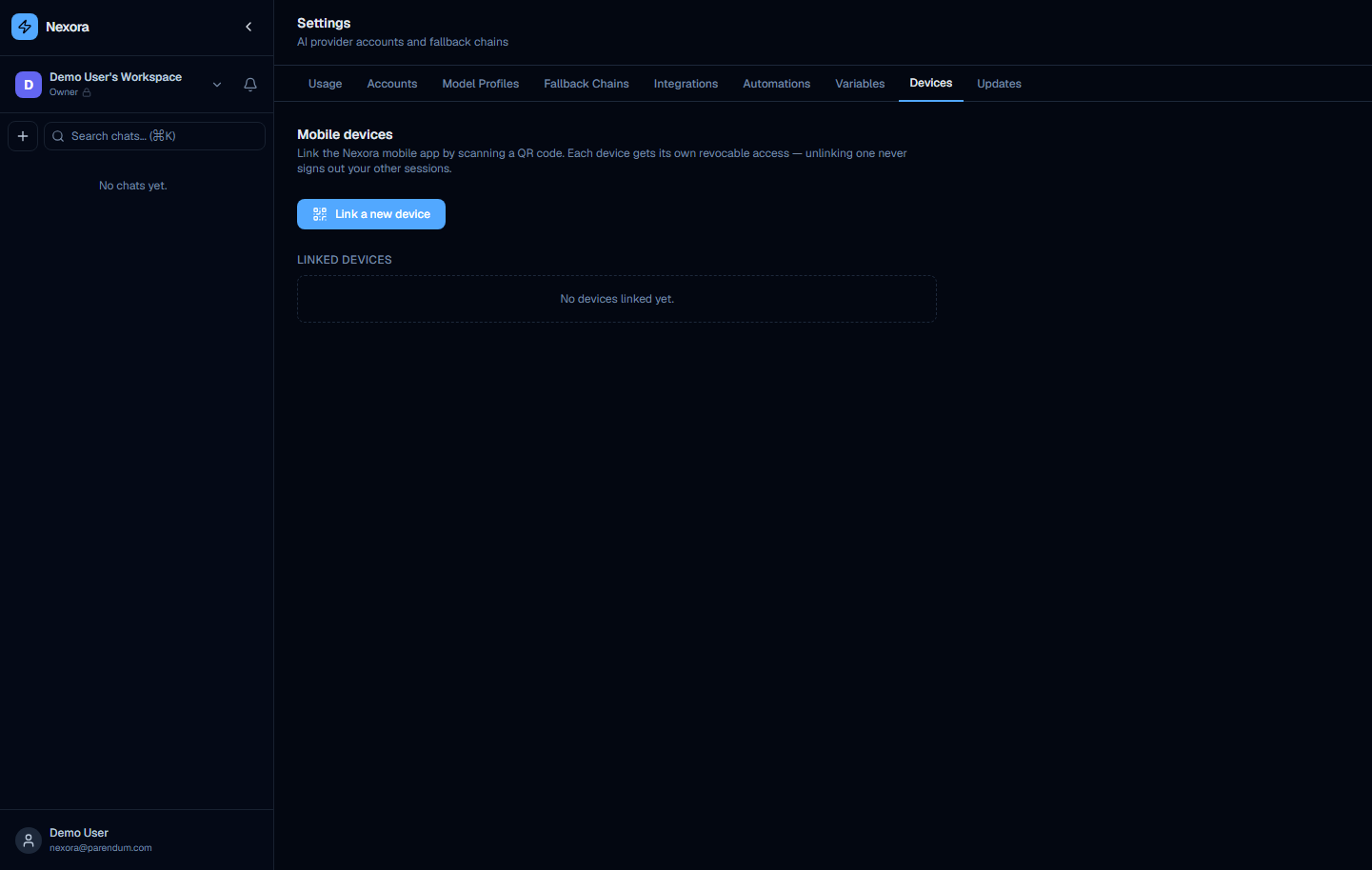
The Devices tab links the Nexora mobile app (iOS / Android) to your account by scanning a QR code. Each device gets its own independently revocable access — unlinking one device never signs out your web, CLI, or other mobile sessions.
Linking a device
Click “Link a new device”
A QR code and a short numeric code appear, with a countdown timer.
Scan with the Nexora app
Scan the QR in the mobile app, or enter the numeric code manually. The code expires after a few minutes.
Done
Once the app completes pairing, the device appears under Linked devices automatically (the panel polls while the QR is open) and the QR is dismissed.
Linked devices
Each linked device shows its name, platform (iOS / Android), and last-active time. Click the trash icon to unlink a device — it loses access immediately and can be re-linked later by scanning a new QR code.
Device pairing uses per-device tokens, so revoking one device is independent of your password and your other sessions. See Getting Started → Mobile App for the full pairing flow.
Updates tab
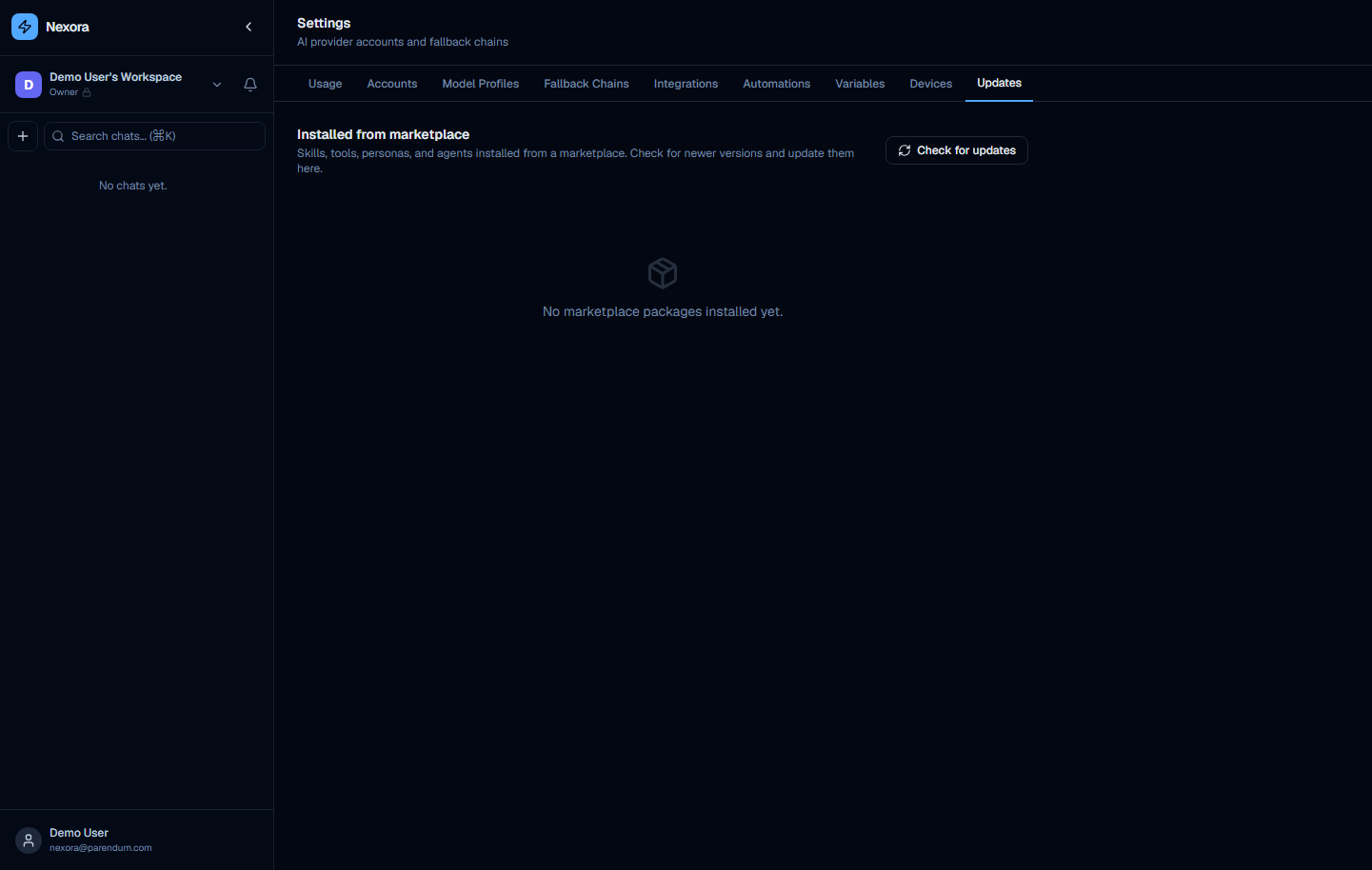
The Updates tab lists the skills, tools, personas, and agents you installed from a marketplace and lets you upgrade them to newer versions.
Checking and applying updates
- Check for updates — re-queries the marketplace for newer versions of every installed package. The button reports how many updates are available.
- A package with a newer version shows
v<installed> → v<available>and an Update button. - Update all appears when more than one package has an update pending.
- Up-to-date packages show a “Up to date” check.
Each row shows the package type (Skill / Tool / Persona / Agent), its name, and the installed version. Paid packages are marked with a lock icon.
Updating a paid package requires a valid purchase/license — the update is rejected (HTTP 402) without one. See the Marketplace guide for installing and purchasing packages.