Channels
The Channels page (/channels) lets you connect Nexora agents to Telegram. A channel is a bridge between a Telegram bot and a specific Project Manager agent in your workspace — messages sent to the bot are routed to the agent, and its responses are sent back through Telegram.
Page Overview
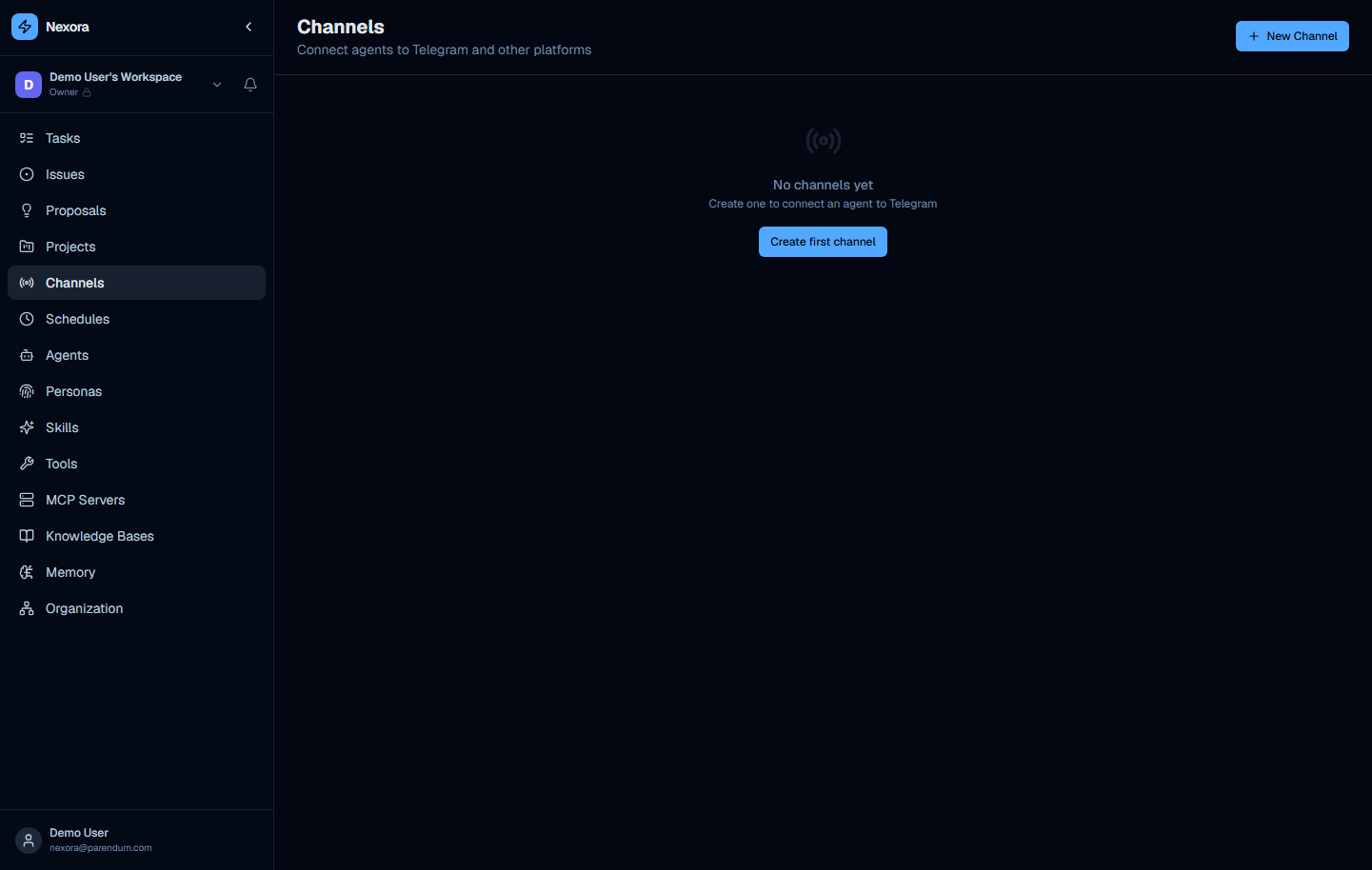
The page opens with a “Channels” heading and the subtitle “Connect agents to Telegram and other platforms”. A “New Channel” button sits in the top-right corner.
Empty State
When no channels have been created, the page displays:
- A broadcast icon
- “No channels yet” heading
- “Create one to connect an agent to Telegram” body text
- A “Create first channel” button that opens the New Channel modal
Telegram Channels
Channels connect an agent to Telegram. When a user sends a message to the configured bot, it is routed to the assigned Nexora agent and the response is sent back through Telegram.
Common uses:
- Customer support bot that answers product questions via Telegram
- Personal assistant bot that accepts tasks from your phone
- Team notification bot that accepts commands and updates the kanban board
For event-driven and time-based automation, Nexora provides separate features: outbound and incoming webhooks (chat-level webhook settings and the webhook-rules API) and the Schedules page (/schedules) for cron-based agent triggers. The Channels page itself is dedicated to Telegram bots.
Creating a Channel
Click “New Channel” (top right) or “Create first channel” (empty state) to open the creation modal.
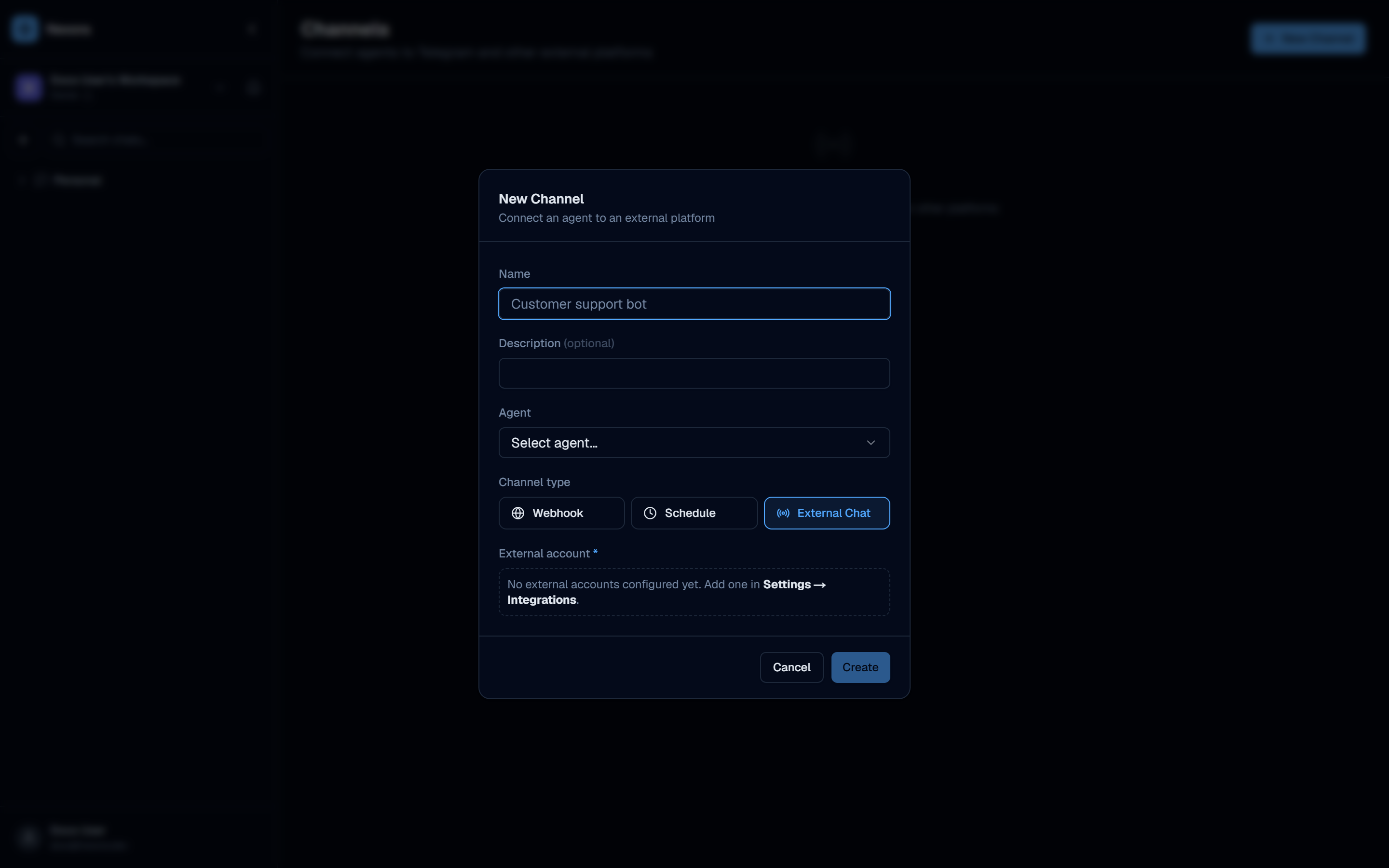
Modal Fields
Title: “New Telegram Channel — Connect an agent to a Telegram bot”
| Field | Description |
|---|---|
| Name | Display name for this channel. Example placeholder: Customer support bot |
| Bot token (required) | Your Telegram bot token from @BotFather , entered directly here (format: 1234567890:AAF...) |
| Agent (required) | Dropdown: select the agent that will handle incoming messages. Only Project Manager–type agents appear in this list. |
Action buttons: Cancel · Create
On create, Nexora saves a Telegram integration and immediately starts the bot.
Setting Up a Telegram Channel
The setup takes three steps.
Step 1 — Create a Telegram Bot
- Open a chat with @BotFather on Telegram
- Send
/newbotand follow the prompts to create a bot - Copy the API token BotFather provides (format:
123456789:ABC-DEF...)
Step 2 — Create the Channel
- Navigate to Channels (
/channels) - Click “New Channel”
- Enter a name (e.g.
Customer Support Bot) - Paste your bot token into the Bot token field
- Select a Project Manager agent to handle messages
- Click Create — Nexora starts the bot automatically
Step 3 — Test the Connection
- Open Telegram and search for your bot by its username
- Send a message
- The agent in Nexora receives the message, processes it, and replies through the bot
Responses from the agent are sent back to the Telegram user in real time. The agent has full access to its configured skills and tools — it can look up project data, run schedules, or call external APIs and return the results to Telegram.
Channel Use Case Reference
The table below maps common Telegram scenarios to a suggested agent.
| Scenario | Suggested agent |
|---|---|
| Customer answers product questions via Telegram | A Project Manager agent |
| Personal task management from your phone | Project Manager |
| Accept commands from team on Telegram | Project Manager |
Managing Existing Channels
Once channels are created, they appear in the channels list. Each row shows:
- Channel name
- Assigned agent name (followed by ”· Telegram”)
- An active indicator and a toggle switch
- A trash button to delete the channel
To pause a channel without deleting it, flip the toggle switch off (this stops the bot); flip it back on to restart.
Prerequisites Checklist
Before creating your first channel, verify:
- At least one Project Manager–type agent exists in your workspace (
/agents) - You have created a Telegram bot via @BotFather and copied its bot token
Channels are workspace-scoped. The bot token is entered directly in the New Channel modal — there is no separate “add integration first” step.