MCP Servers
The MCP Servers page (/mcps) is where you register external Model Context Protocol servers with Nexora. Each server you add exposes a set of tools that any agent in your organization can use — exactly like built-in tools, but sourced from infrastructure you control or from third-party services.
What is MCP?
MCP (Model Context Protocol) is an open standard that defines how AI agents communicate with external data sources, APIs, and services. An MCP server is a process that exposes a list of callable tools through the protocol. When Nexora connects to an MCP server, it discovers those tools automatically — no manual configuration per tool required.
Think of MCP servers as a universal adapter layer: instead of building custom integrations for every external service, you connect any compliant MCP server and all its tools become immediately available to your agents.
MCP tool discovery is automatic. Once you register a server URL, Nexora connects to it and enumerates every tool the server exposes. You do not need to define the tools manually.
Page layout
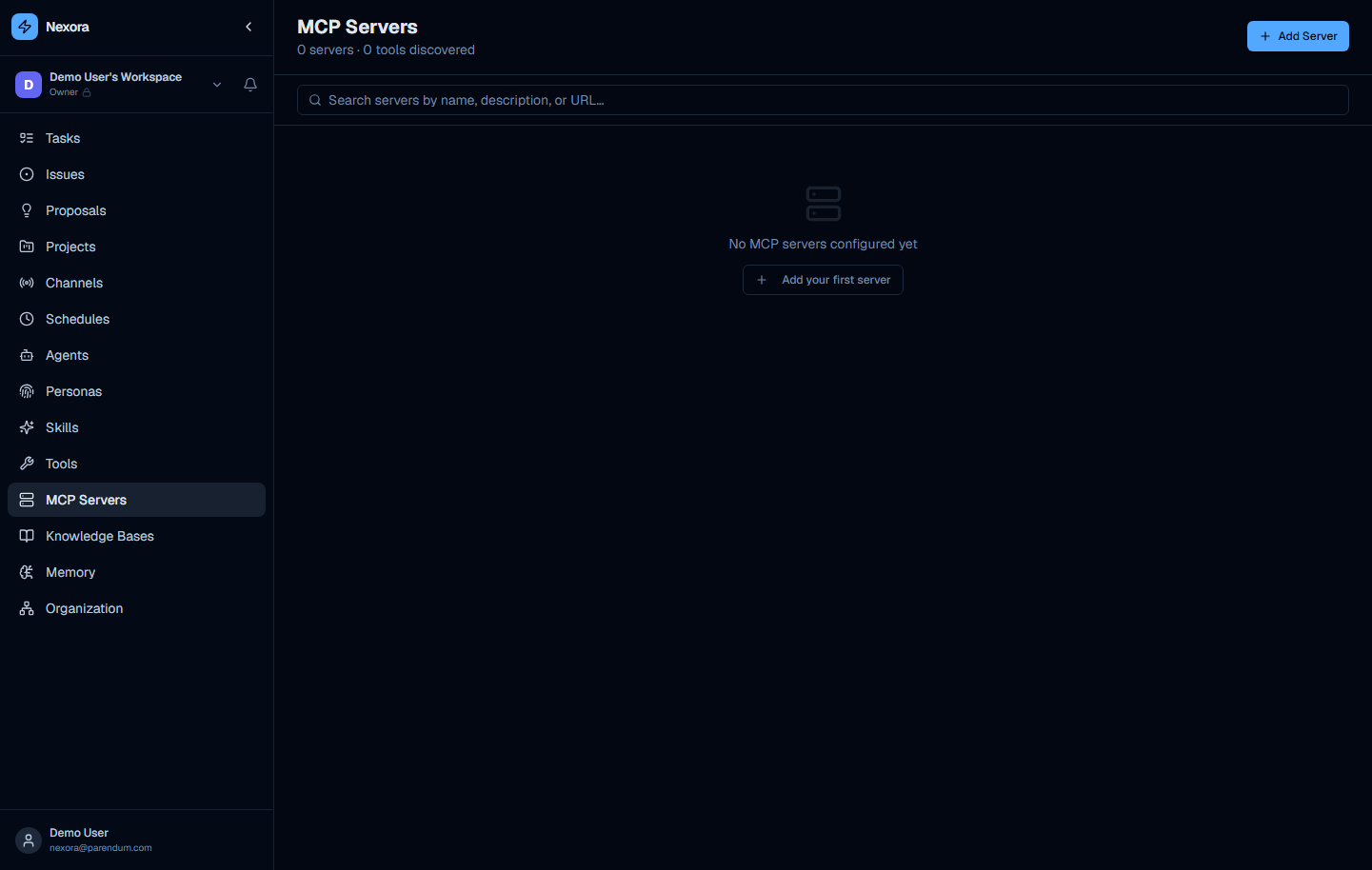
The MCP Servers page has three main elements:
Header
- “MCP Servers” — page title (h1)
- “0 servers · 0 tools discovered” — live summary showing the count of registered servers and the total number of tools discovered across all of them. Both numbers update as you add or remove servers.
- “Add Server” button — top right, blue primary button. Opens the add-server dialog.
Search bar
A full-width search field labeled “Search servers by name, description, or URL…” filters the server list in real time. Useful when you have many servers registered across different environments or services.
Server list / empty state
When no servers are configured, the page shows the empty state:
- A server stack icon
- “No MCP servers configured yet” — heading
- “Add your first server” — secondary action button (equivalent to the header button)
Once servers are added, each server appears as a card showing its name, URL, description, auth type, and the number of tools it exposes.
Adding an MCP server
Open the add-server dialog
Click the “Add Server” button in the top right, or click “Add your first server” in the empty state. A dialog opens with fields for server configuration.
Enter the server name
Provide a short, descriptive name for the server (e.g. “Postgres Dev”, “Internal File Server”, “Slack MCP”). This name is how the server appears in the list and in agent tool selectors.
Enter the server URL
Paste the HTTP endpoint URL for your MCP server (e.g. http://localhost:9990 or https://your-server.internal/mcp). Nexora connects over HTTP — it tries JSON-RPC, a GET /tools listing, SSE, and OpenAPI discovery against that URL. Optionally set an Auth type and value, and a Config JSON blob.
MCP servers are reached over HTTP/SSE only. There is no stdio:// transport — run a local MCP server behind an HTTP endpoint to connect it.
Add an optional description
The description field accepts free text. Use it to document what the server is for, who owns it, or what environment it belongs to (e.g. “Production Postgres read-replica — query customer data”).
Save and connect
Click “Add Server” to save. Nexora attempts to connect to the server and discover its tools. The server card appears in the list showing its tool count and auth type.
If discovery succeeds, the tool count updates on both the server card and the page subtitle. If the server is unreachable, you can edit the URL and re-fetch its tools.
MCP vs built-in tools
Both MCP tools and built-in tools appear in the same tool selector when configuring an agent. The distinction is in where they come from and how they are set up:
| Built-in Tools | MCP Servers | |
|---|---|---|
| Setup | None — available immediately to all agents | Requires registering a server URL |
| Discovery | Defined in Nexora platform (seeds/tools) | Auto-discovered via MCP protocol on connection |
| Hosting | Nexora platform infrastructure | Your infrastructure or a third-party MCP host |
| Customization | Fixed by the platform | Fully customizable — you control the server |
| Examples | git, bash, github_read, gitlab_read | Postgres, filesystem, Slack, Jira, custom APIs |
Use built-in tools for standard operations (code, git, GitHub, GitLab). Use MCP servers when you need to give agents access to your own databases, internal APIs, or third-party services that publish an MCP server.
Several popular services publish official MCP servers. Check the MCP server registry for ready-made servers for Postgres, filesystem access, Slack, and more.
Use cases
Database access
Connect a Postgres MCP server to give agents the ability to run read queries against your database. Agents can then answer questions like “how many users signed up last week?” by querying the data directly.
Server name:  Postgres Analytics
URL:          https://mcp.internal.yourcompany.com/postgres
Description:  Read-only access to the analytics replica
Filesystem operations
A filesystem MCP server lets agents read and write files within a sandboxed directory. Useful for agents that need to generate reports, process uploaded files, or manage configuration files.
Internal APIs and tooling
If your engineering team has internal tools — deployment scripts, infrastructure APIs, monitoring dashboards — you can wrap them in an MCP server and expose them to agents without writing custom Nexora integrations.
Third-party service integrations
Services like Slack, Jira, Linear, and Notion publish MCP servers. Connecting them allows agents to post messages, create tickets, and read project data as part of multi-step workflows orchestrated by the Project Manager agent.
Managing servers
Once a server is registered, each server card provides:
- Fetch tools — re-query the server to re-discover its tools (useful after the server has been updated with new tools)
- Edit — update the name, URL, description, auth, or config
- Delete — remove the server and all its discovered tools from agent selectors
Deleting an MCP server removes all of its tools from the platform. Any agents that had those tools assigned will lose access to them. Review agent configurations before removing a server.
Assigning MCP tools to agents
After adding a server and verifying tool discovery, navigate to Agents (/agents) and open the agent you want to extend. In the agent builder, switch to the Tools tab. MCP-sourced tools appear in the same list as built-in tools, grouped under their server name. Toggle any tool on to make it available to that agent.
See the Agents guide for full details on the agent builder.