Projects, Issues & Schedules
Nexora’s productivity layer consists of three interconnected systems: Projects for structured multi-agent work, Issues for granular task and bug tracking, and Schedules for autonomous recurring agent execution. Together they turn Nexora from a chat interface into a fully operational project management environment.
Projects
Projects Page (/projects)
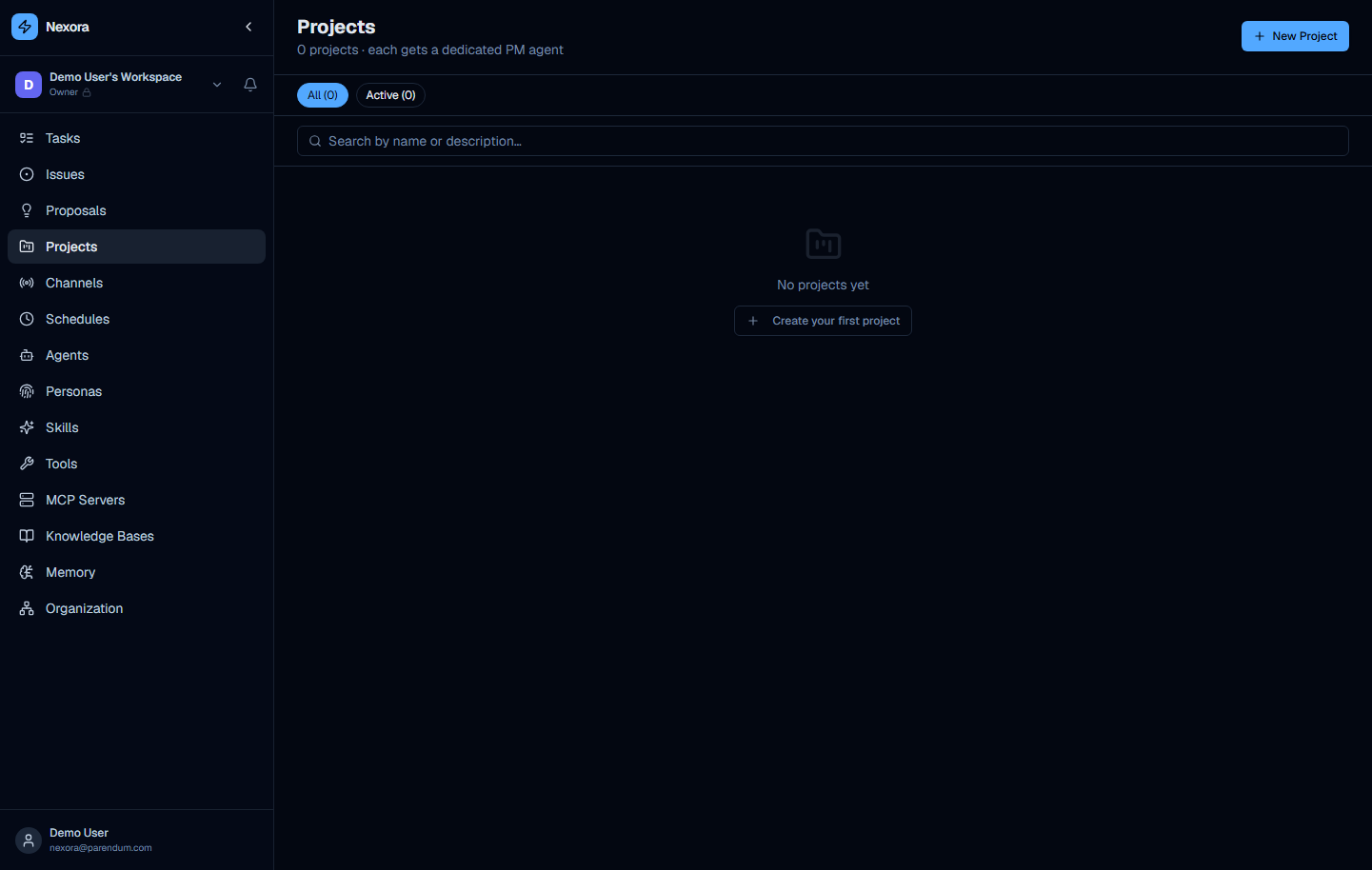
The Projects page opens with a “Projects” heading and a subtitle that reads “0 projects · each gets a dedicated PM agent” — a reminder that every project you create is automatically paired with a Project Manager sub-agent.
Page controls:
- “New Project” button — top right, launches the creation modal
- Filter chips: All (0) · Active (0)
- Search input: “Search by name or description…”
Empty state displays:
- “No projects yet” heading
- “Create your first project” button
Creating a Project
Click “New Project” to open the creation modal.
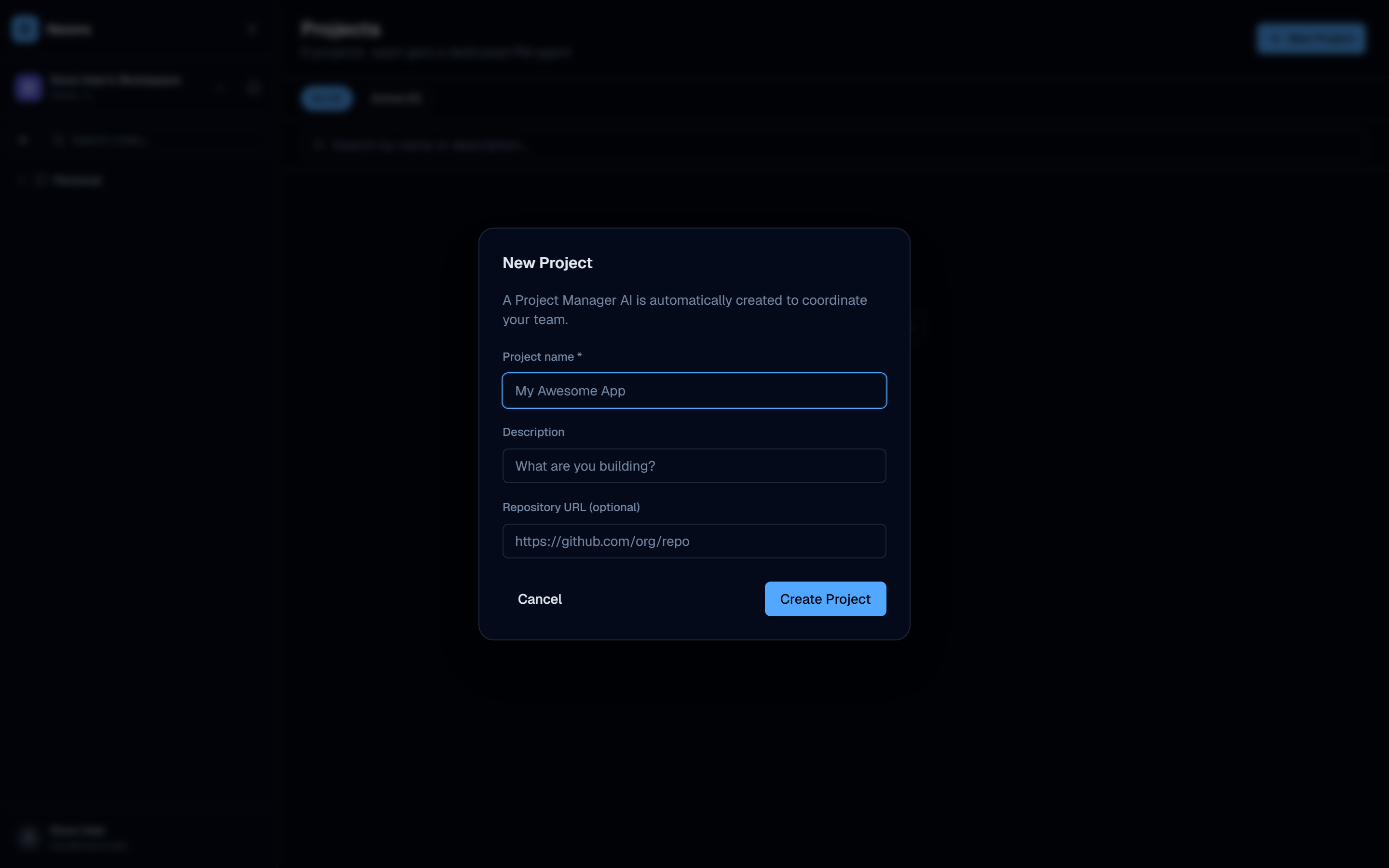
The modal collects:
- Name — the project’s display name, shown in the projects list and on issue cards
- Description — optional context about the project’s goal or scope
- Repository URL — optional git repository to link to the project
Once created, the project appears in the list and is immediately accessible to all agents in your workspace, particularly the Project Manager and Scrum Master agents.
Dedicated PM Agents
Every project in Nexora automatically gets a dedicated Project Manager sub-agent. This agent is responsible for decomposing objectives, delegating tasks to specialist sub-agents, tracking completion, and reporting back. You do not need to configure this manually — it is provisioned at project creation time.
The dedicated PM agent can:
- Break a high-level goal into a structured plan
- Spawn specialist agents (Developer, Designer, DevOps, etc.) to execute individual steps
- Mark steps complete as results arrive
- Iterate on incomplete steps before closing the objective
- Report a final summary to the user when all steps are done
To interact with the project’s PM agent directly, open a chat in the workspace and select the project-specific agent from the agent picker.
Project Kanban Board
Each project includes a kanban board accessible at /projects/[id]/board. The board shows the project’s tasks organised by status column: Pending, Queued, In Progress, Paused, Done, Failed.
The Project Manager agent has direct write access to the kanban board. You can say things like:
- “Create a task for the login page redesign and assign it to the designer agent”
- “Move the authentication bug to In Review”
- “Show me everything in the Backlog for Project X”
and Project Manager will update the board in real time.
Project Status Filters
The filter chips on the Projects page let you narrow the list:
| Filter | Description |
|---|---|
| All | Shows every project regardless of status |
| Active | Shows only projects that are currently active |
These are the only two filter chips.
Issues
Issues Page (/issues)
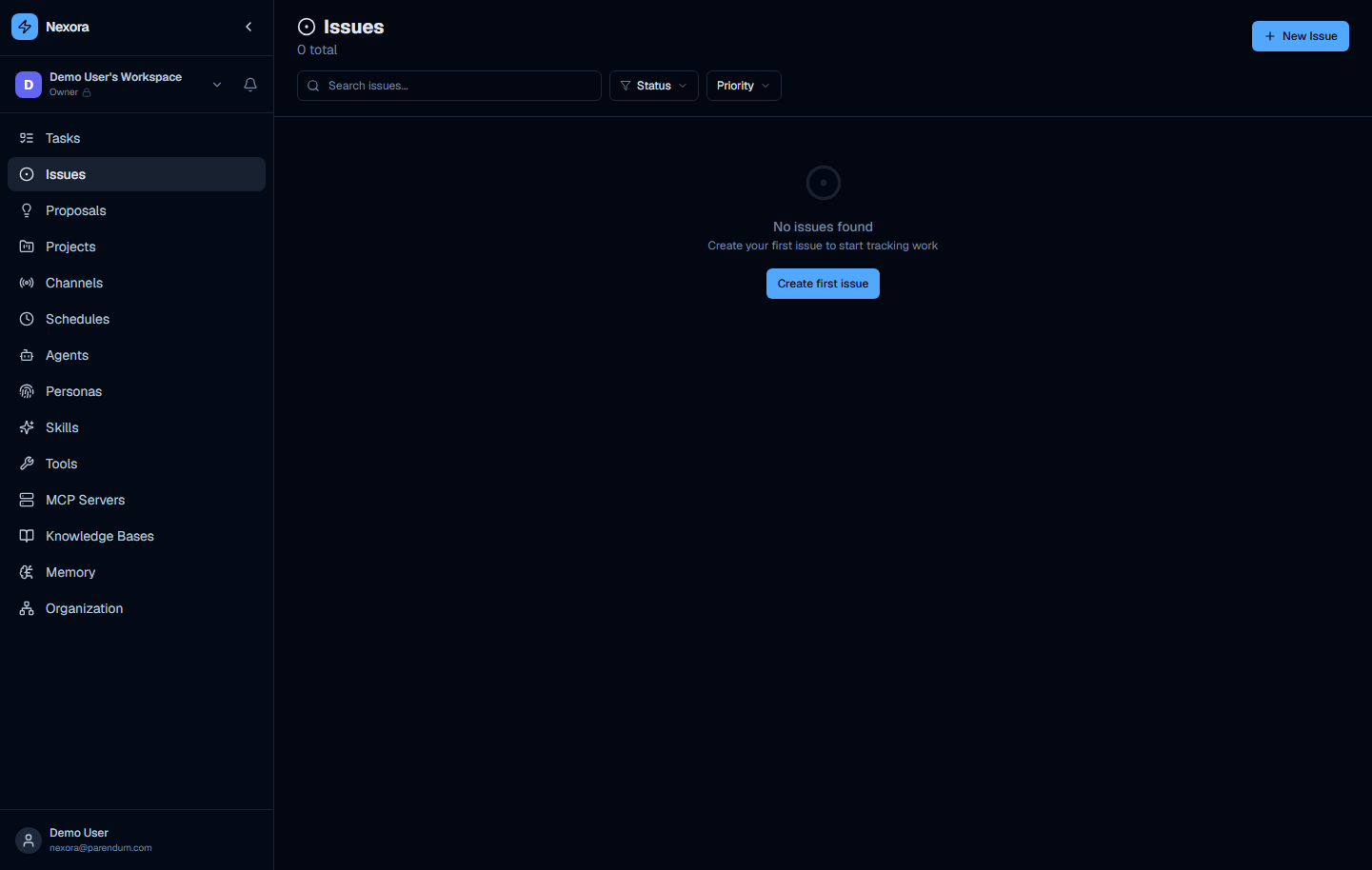
The Issues page is a workspace-wide issue tracker for bugs, feature requests, and tasks. Issues can exist independently of a project or be linked to one.
Key features:
- Create issues with a title, description, priority, and status
- Link issues to a project to have them appear on the project’s kanban board
- Assign issues to agents or team members
- Filter issues by status, priority, project, and assignee
- View issue history and comments
Issue Lifecycle
A typical issue moves through the following states:
Open → In Progress → In Review → DoneIssues can also be marked as Closed (resolved without completion) or Won’t Fix.
Working with Issues from Chat
The Project Manager agent is the primary interface for issue management from chat. Example interactions:
- “Create a bug report for the login timeout issue with high priority”
- “List all open issues in the authentication project”
- “Mark issue #42 as done”
- “Assign the CSS bug to the Designer agent”
The Issue Analyst built-in agent (available in the Agents page) goes further — it triages, categorises, and prioritises issues and can sync state with GitLab and GitHub repositories.
Issues created inside Nexora can be synced with external trackers via the GitLab Write and GitHub Write skills. Configure an Issue Analyst agent with those skills to maintain a two-way mirror between Nexora and your external issue tracker.
Schedules
Schedules Page (/schedules)
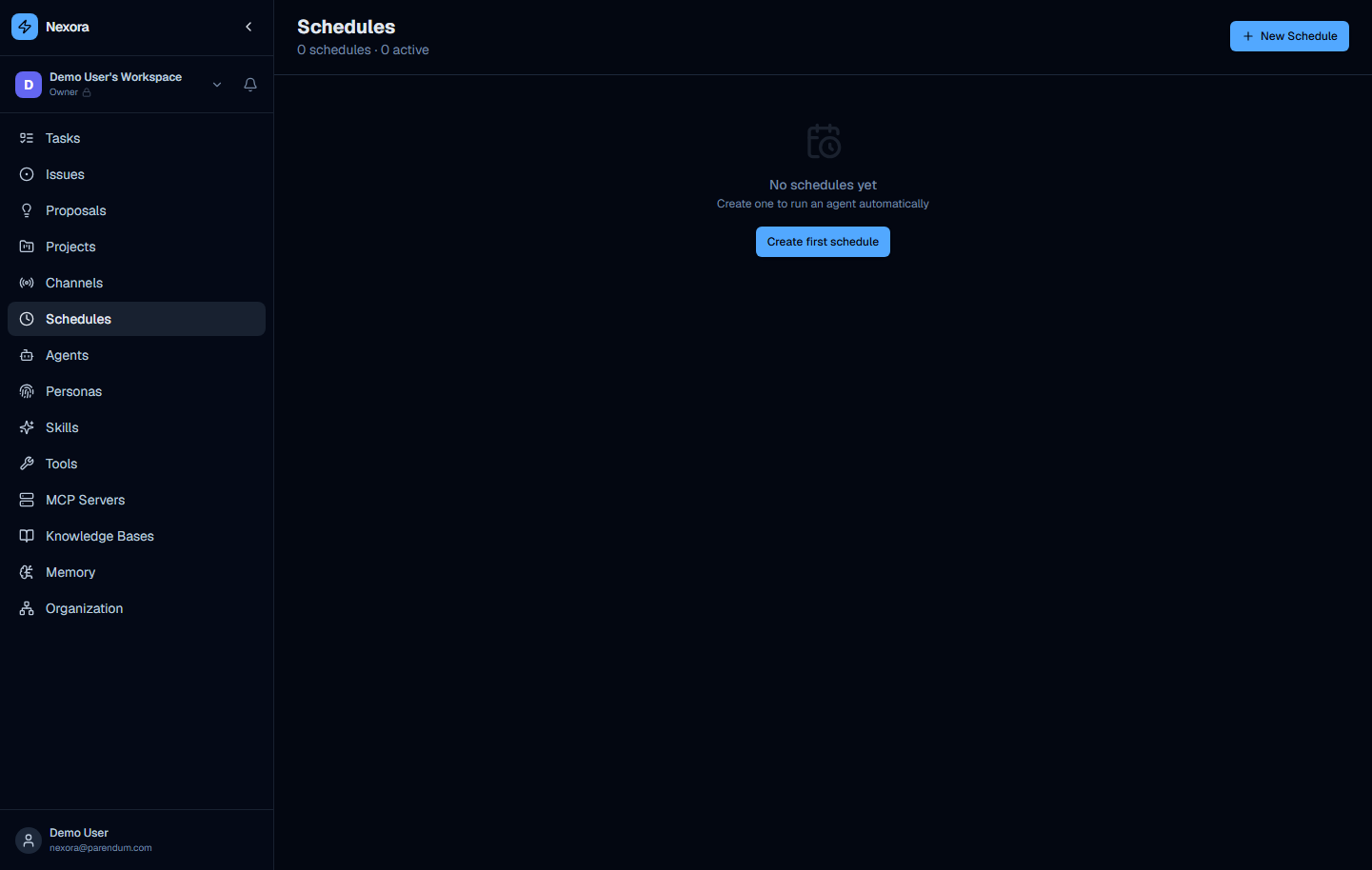
The Schedules page lists all configured cron-based agent triggers. Each schedule defines an agent to run, a cron expression that controls when it runs, and optional parameters passed to the agent at runtime.
Page controls:
- “New Schedule” button — top right, opens the schedule creation modal
- Schedule list with name, cron expression, assigned agent, status, and last-run timestamp
Creating a Schedule
Click “New Schedule” to open the creation modal.
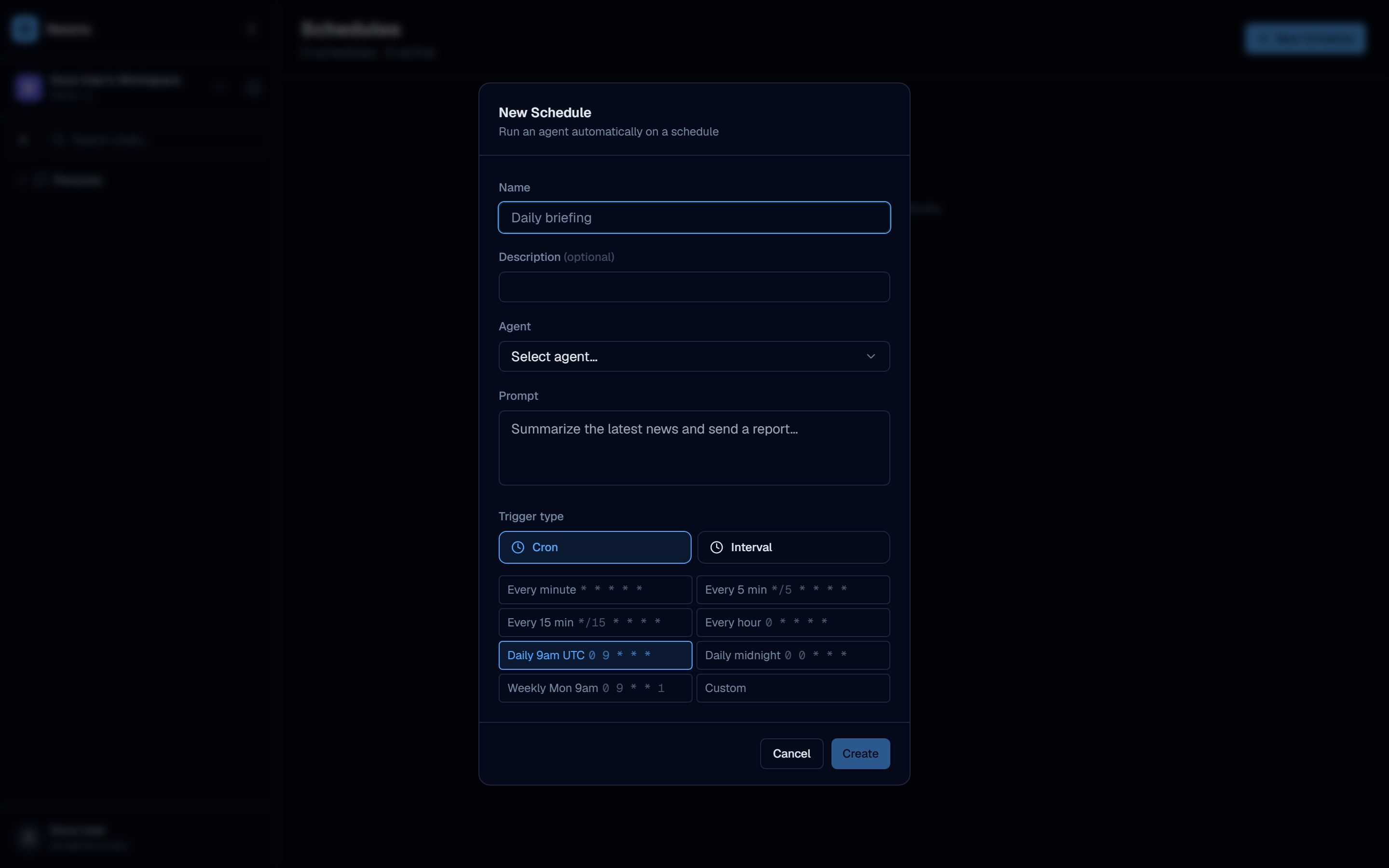
The modal collects:
| Field | Description |
|---|---|
| Name | Display name for the schedule (e.g. Daily Standup) |
| Agent | The agent to invoke when the schedule fires |
| Cron expression | Standard 5-field cron format (minute · hour · day · month · weekday) |
| Prompt / instructions | The message or task description sent to the agent at runtime |
| Status | Active or paused — paused schedules do not fire |
Common cron expressions:
| Schedule | Expression |
|---|---|
| Every day at 09:00 | 0 9 * * * |
| Every Monday at 08:30 | 30 8 * * 1 |
| Every hour | 0 * * * * |
| Every weekday at 17:00 | 0 17 * * 1-5 |
| Every Sunday at midnight | 0 0 * * 0 |
Schedule-Managed Agents
The schedule_manage skill (used by the Scrum Master agent) allows agents to create and manage schedules programmatically from chat. This means you can ask the Scrum Master:
- “Set up a daily standup at 09:00 every weekday”
- “Schedule a weekly project review every Friday at 16:00”
- “Pause all schedules for this week”
and it will create or modify the schedule entries without you having to open the Schedules page.
Schedules created by the schedule_manage skill appear on the Schedules page and can be viewed and edited there. There is no distinction between schedules created manually and those created by an agent.
Schedule Channel vs. Schedule Page
There are two places schedules appear in Nexora:
| Location | Purpose |
|---|---|
Schedules page (/schedules) | Global list of all cron-based agent triggers across the workspace |
| Channels page → Schedule type | A channel-scoped trigger wired to one agent, optionally with external delivery (e.g. post result to Telegram) |
Use the Schedules page for most automation. Use a Schedule-type Channel when you also want the agent’s output delivered to an external platform after each run.
How the Three Systems Interconnect
Projects, Issues, and Schedules are designed to work together:
Project (goal)
  └── Issues (work items on kanban board)
  └── Schedules (recurring reviews, standups, reports)
  └── Dedicated PM agent (orchestrates everything)
A typical workflow:
- Create a Project for a new feature launch
- The PM agent decomposes it into Issues and populates the kanban board
- Set up a Schedule for a Friday 16:00 weekly review — the PM agent summarises progress
- The Scrum Master runs a daily standup Schedule that pings each assigned agent for status
- As issues are completed, the kanban board updates automatically
The Project Manager agent (/agents) is the recommended entry point for all project management tasks. It has direct access to the projects, issues, schedules, and kanban APIs and can manage all three systems from a single chat session.
Quick Reference
| Page | Path | Primary agent |
|---|---|---|
| Projects list | /projects | Project Manager, Scrum Master |
| Project kanban board | /projects/[id]/board | Project Manager |
| Issues tracker | /issues | Project Manager, Issue Analyst |
| Schedules list | /schedules | Scrum Master |