Chat
The chat interface is the primary way to interact with Nexora agents. It provides a real-time streaming conversation UI with side panels for monitoring agent activity, execution plans, token usage, and file attachments.
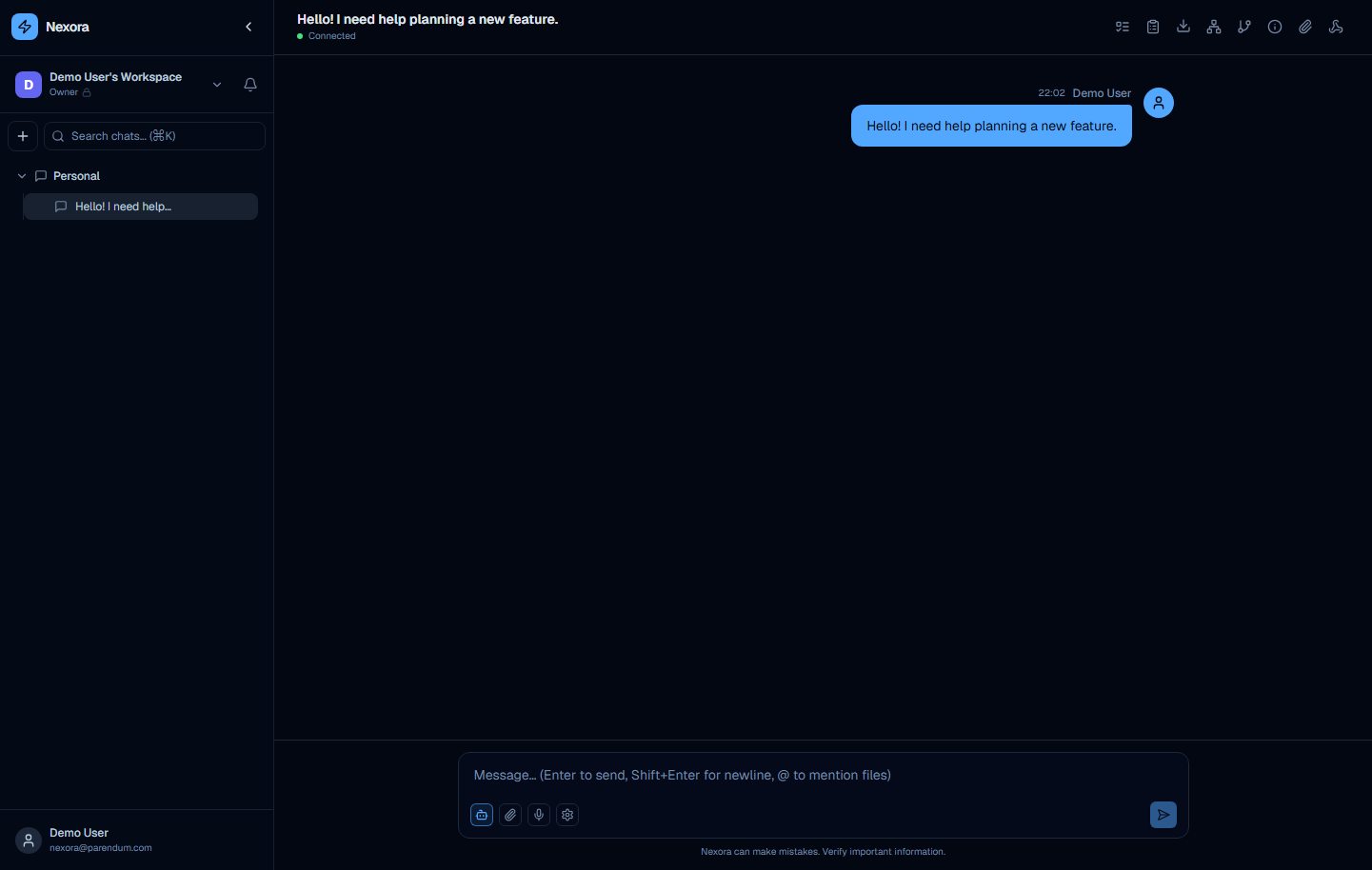
Starting a chat
Open a new chat
From the workspace home, click the New Chat button (blue, primary) or the + icon button in the sidebar. A new empty chat opens in the main content area.
Type your message
Click the message textarea at the bottom of the screen and type your message. The placeholder text reads:
Message… (Enter to send, Shift+Enter for newline, @ to mention files)
Send the message
Press Enter to send, or click the send arrow button on the right side of the input bar. The send button is disabled (greyed out) until at least one character is typed.
If no AI provider is configured, sending a message shows: “No providers configured. Please add a provider in Settings.” Configure at least one account under Settings → Accounts before chatting.
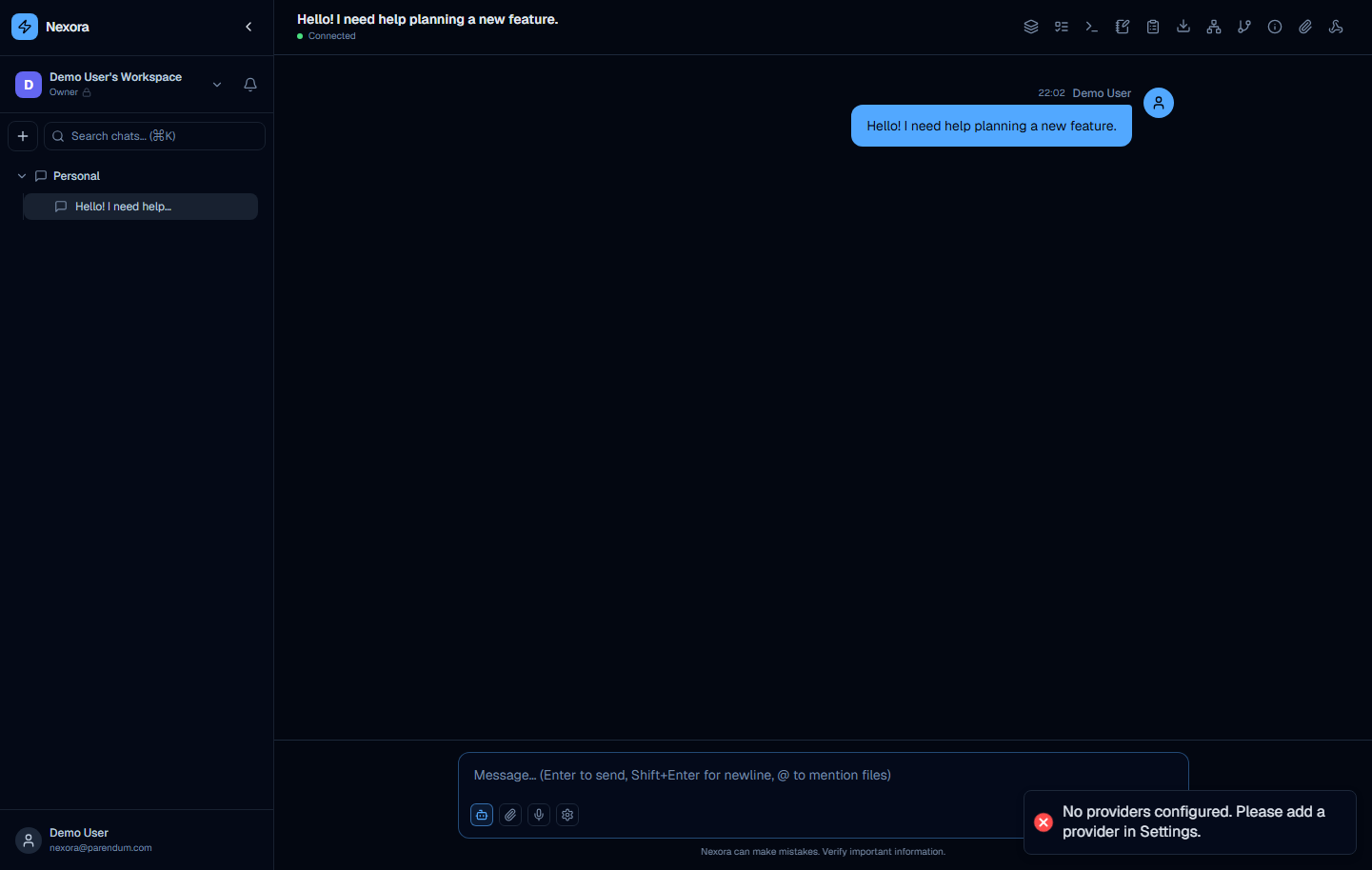
Header bar
The chat header bar runs across the top of the main content area.
Left side:
- Chat title — derived from the text of the first message. Updates when the first message is sent.
- Connection status dot — a small colored indicator:
- Green dot + “Connected” — WebSocket connection is active
- Yellow dot + “Connecting…” (or “Reconnecting… (n)” after a drop) — WebSocket is establishing or reconnecting
Right side: A row of icon buttons controls side panels and auxiliary views. Each button toggles the corresponding panel open or closed (clicking a second panel button replaces the first — only one right-side panel is open at a time). Some buttons are hidden in simple UI mode or only appear when relevant (e.g. the repository explorer).
Side panels
The toggle buttons in the top-right open distinct panels. Available controls:
Sub-agent activities
Icon: Layers icon · (advanced UI mode only)
Toggles a left-side panel listing the sub-agents working in this conversation, each with its live step timeline and a link to open its sub-chat. It opens automatically when sub-agents start. A small dot marks running activity.
Task tree
Icon: List-todo icon
Opens a side panel showing all tasks created by agents during this conversation, as a hierarchical tree with status indicators (pending, in progress, completed, failed). Selecting a task with a sub-chat navigates to it; others open a task detail panel.
Agent logs
Icon: Terminal icon · (advanced UI mode only)
Opens a live log panel of agent activity for the conversation.
Chat notes
Icon: Notebook icon · (advanced UI mode only)
Opens an editable notes panel shared by the chat’s participants.
Execution plan
Icon: Clipboard icon
Shows the structured multi-step plan created by a planning agent when it begins a complex objective. The plan lists each step with its status and updates in real time. A pulsing dot marks an active plan.
Export conversation
Icon: Download icon
Hovering reveals a small menu with Export JSON and Export Markdown download links for the conversation.
Agent hierarchy
Icon: Network icon
Clicking this button opens a new browser window (/hierarchy/{chatId}) showing the full sub-agent tree for the current conversation as an interactive graph.
The agent hierarchy opens in a new window so you can monitor it alongside the main chat without losing your place in the conversation.
Execution graph
Icon: Git-branch icon
Opens a panel visualizing the conversation’s execution graph (agents, tasks, and their relationships).
Conversation stats
Icon: Info circle icon
Opens a panel showing token usage and tool call statistics for the current conversation (input tokens, output tokens, tool calls).
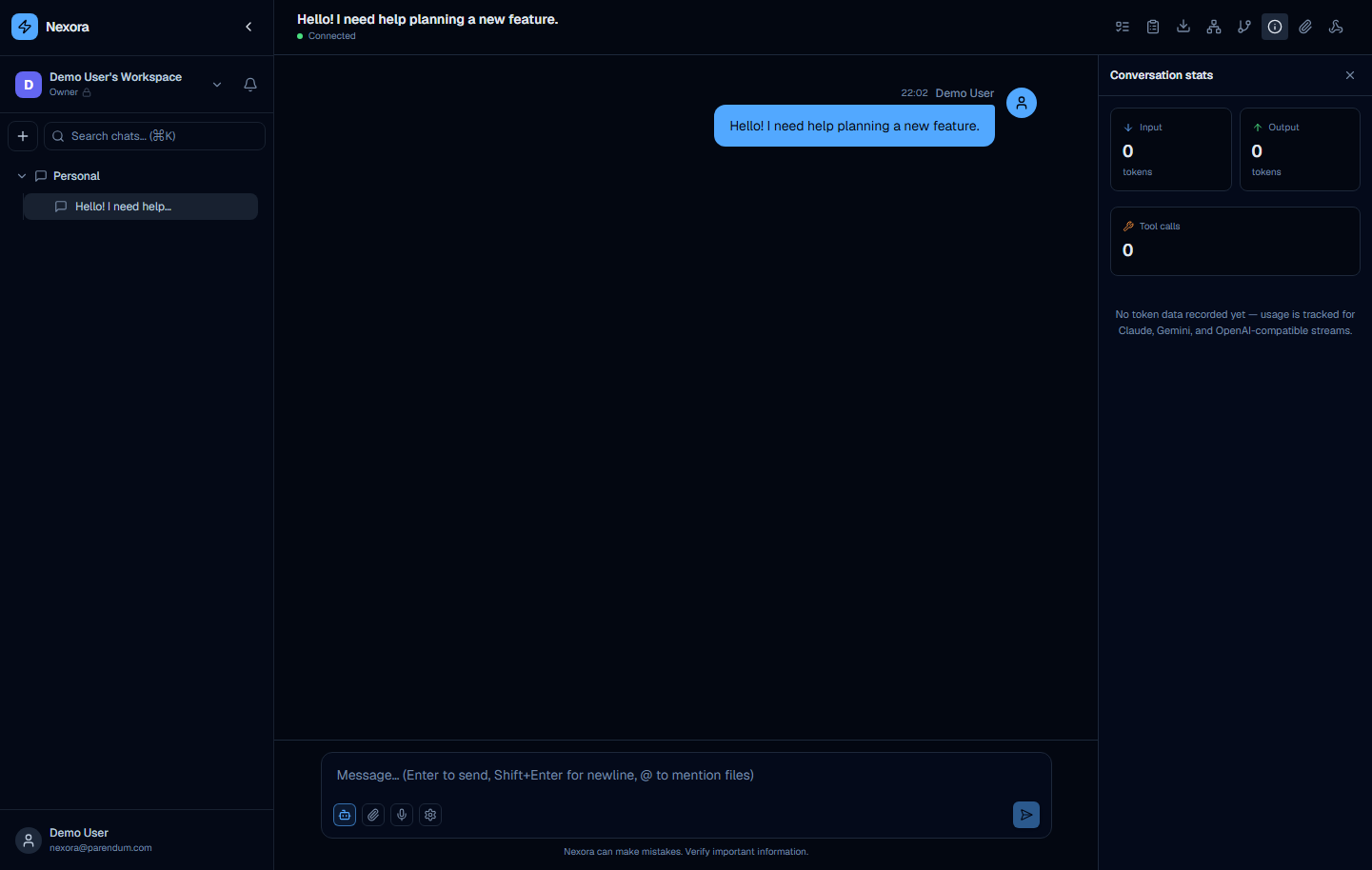
Token usage is tracked for Claude, Gemini, and OpenAI-compatible streams. Providers that do not return usage data in their stream responses will show 0.
Attached files
Icon: Paperclip icon
Opens the file attachment panel for the current chat thread. A dot marks the button when files are attached.
The panel supports:
- Drag and drop — drag files onto the input/panel
- Paperclip button — click the paperclip icon in the input bar to open a file picker
All chats in this thread share the attached files. Files attached here are available as context to agents across all messages in the conversation.
Webhook settings
Icon: Webhook icon
Opens a panel for configuring an inbound webhook URL for this conversation. A green dot marks the button when a webhook is configured.
Repository explorer
Icon: Folder-code icon · (only when the chat’s project has both a repository URL and a connected git credential)
Opens a file-tree browser for the project’s repository.
Message area
The message area is the scrollable central region between the header bar and the input bar.
User messages
User messages are displayed right-aligned in a blue bubble. Above each message the timestamp and the user’s name are shown.
Agent messages
Agent messages are displayed left-aligned on a dark background card. The agent’s name and avatar appear above the message. Streaming messages update character-by-character as the LLM generates output.
Message actions
Hovering over any message (user or agent) reveals a row of action buttons:
| Button | Action |
|---|---|
| Exclude from AI context | Removes this message from the context window sent to the LLM on future turns, without deleting it from the display |
| Copy message | Copies the message text to the clipboard |
| Edit message | (your own messages only) Opens an inline editor; submitting the edit forks the conversation into a new chat with the edited message and continues from there |
Input bar
The input bar is fixed at the bottom of the chat area.
Textarea
The main textarea accepts free-form text. Keyboard shortcuts:
| Shortcut | Action |
|---|---|
| Enter | Send message |
| Shift + Enter | Insert a newline |
| @ | Trigger file mention picker |
Left-side buttons
| Button | Icon | Description |
|---|---|---|
| Agent toggle | Robot icon | Enable or disable agent mode. When active the icon is blue; when disabled the agent is bypassed and the message is processed by the default model only |
| Attach files | Paperclip icon | Opens a file picker to attach files to the conversation |
| Voice input | Microphone icon | (only shown in browsers that support the Web Speech API) Dictate a message; the browser transcribes speech and inserts it into the textarea |
| Chat settings | Gear icon | Opens the chat settings popup (see below) |
Right-side button
| Button | Icon | Description |
|---|---|---|
| Send | Arrow icon | Submits the message. Disabled (greyed out) until the textarea contains at least one character |
Footer
Below the input bar a small footer reads:
Nexora can make mistakes. Verify important information.
Chat settings popup
Clicking the gear icon in the input bar opens the chat settings popup directly above the input bar.
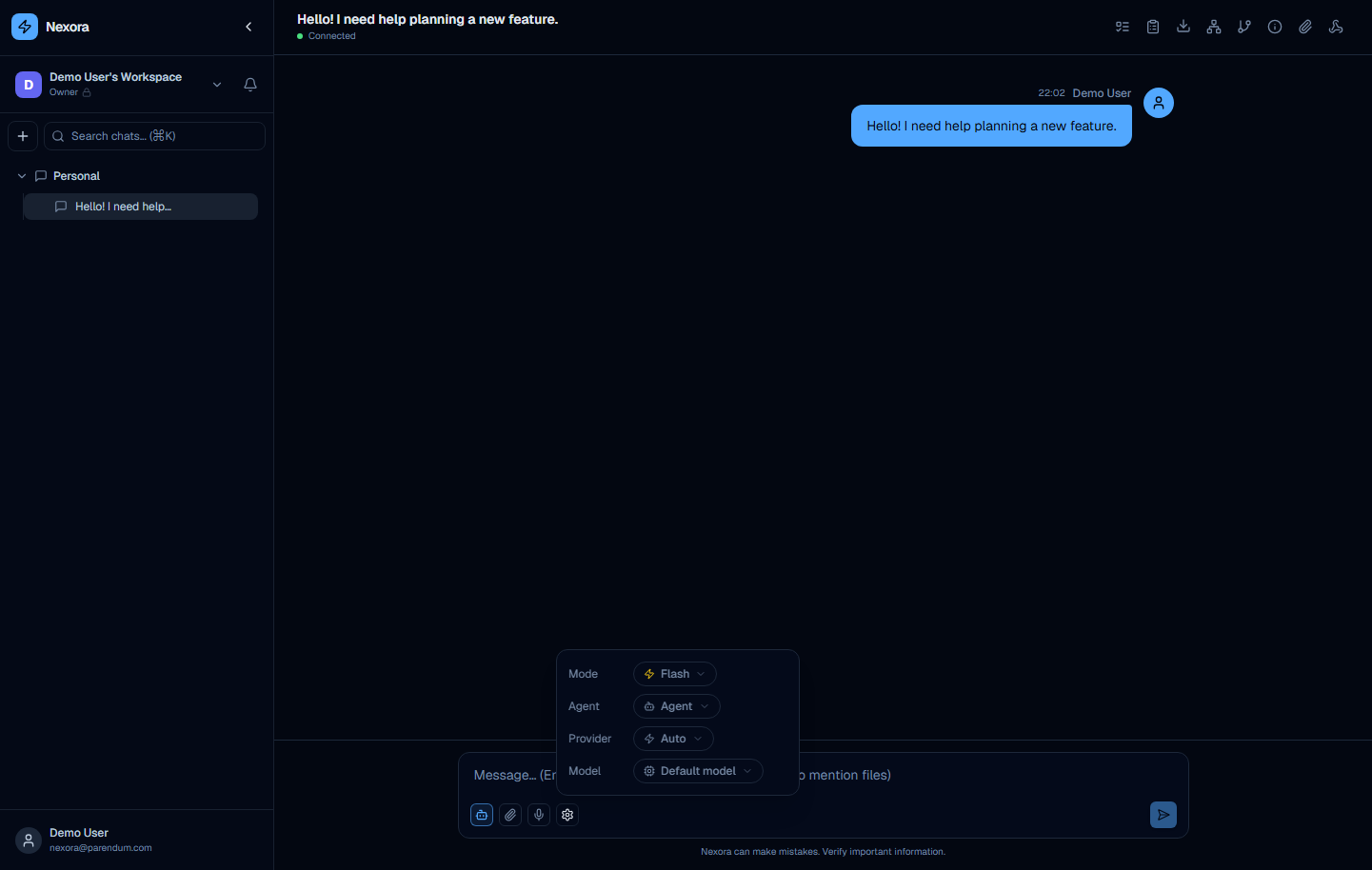
The popup contains four settings:
| Setting | Default | Description |
|---|---|---|
| Mode | Flash | Reasoning-effort tier: Flash (fast, no extra reasoning), Think (step-by-step reasoning), or Deep (thorough analysis). |
| Agent | (last used or default) | Which agent responds to messages in this chat. Example: “Agent Architect”. Selecting a different agent immediately changes who responds to the next message. |
| Provider | Auto | Which AI account to use for this chat. “Auto” uses the first available account in your fallback chain. You can pin a specific account here. |
| Model | Default model | Override the model for this chat. “Default model” uses whatever model is configured on the selected provider account. |
Chat settings are per-conversation — changing the agent or model here affects only this chat, not other open chats or new chats.
Connection and reconnection
Nexora uses a persistent WebSocket connection for real-time streaming. If the connection drops, the status dot turns yellow and shows “Connecting…”. The client automatically reconnects using exponential backoff — you do not need to refresh the page.
If reconnection fails after several attempts, refresh the page to re-establish the connection manually.