Profile
Nexora exposes two separate settings areas for personal and organizational configuration. The Profile page (/profile), documented here, manages everything that belongs to you as an individual user. The shared workspace that all members of your org interact with is managed on the Organization page.
Profile page (/profile)
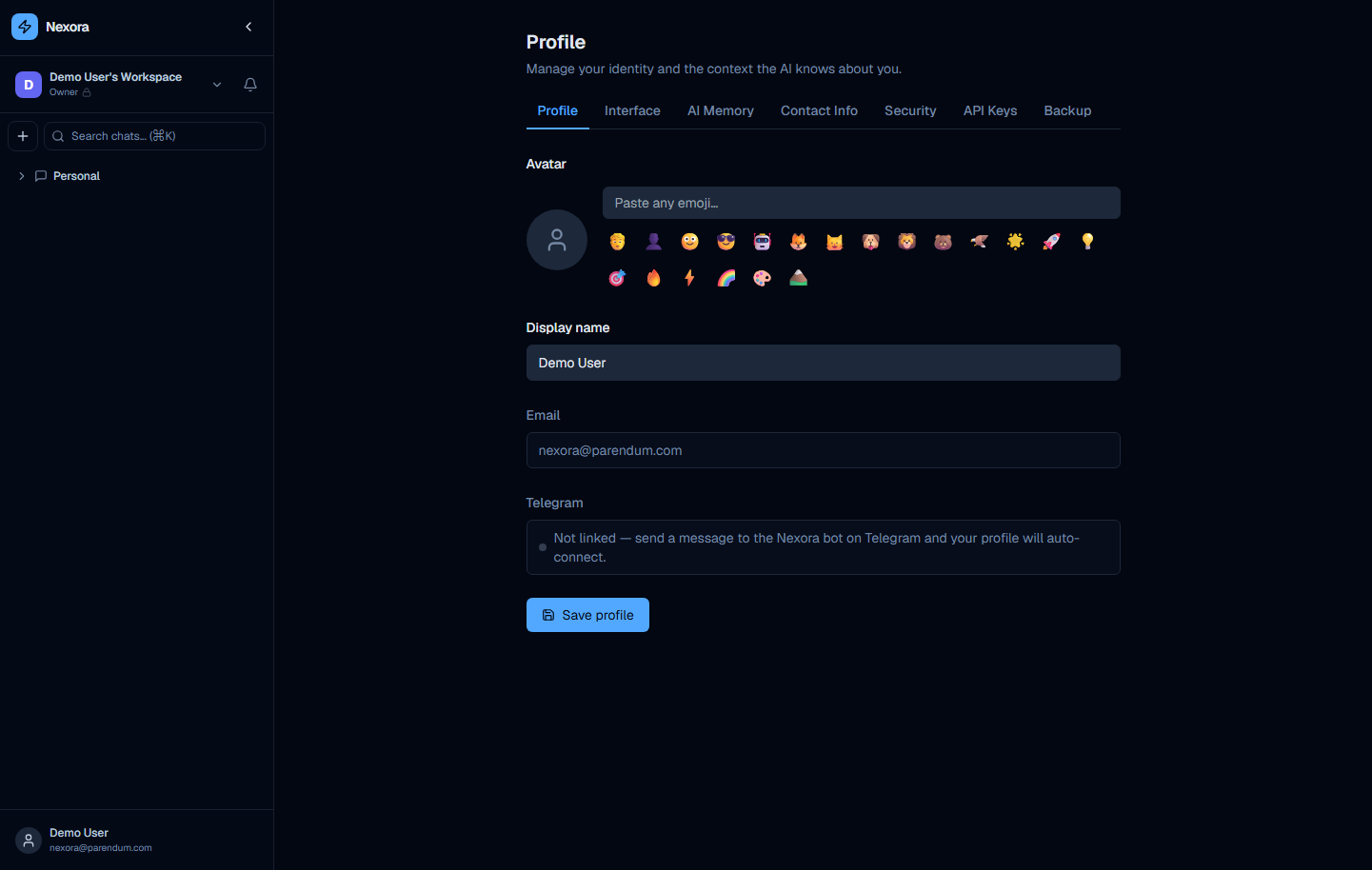
The profile page is divided into seven tabs:
| Tab | Purpose |
|---|---|
| Profile | Display name, avatar emoji, email, and Telegram linking |
| Interface | UI preferences such as theme and layout |
| AI Memory | Personal context fed into agent system prompts |
| Contact Info | Additional contact details attached to your account |
| Security | Password change and TOTP two-factor authentication |
| API Keys | Personal API keys for programmatic access to Nexora |
| Backup | Export your account data |
Superusers see one additional Admin tab.
Profile tab
The Profile tab controls your visible identity within Nexora.
Avatar
Your avatar is an emoji, not an image upload. The picker presents:
- A text input labeled “Paste any emoji…” — paste or type any Unicode emoji directly
- A preset grid of common emojis (😎 🚀 💡 🔥 ⚡ and others) for one-click selection
The selected emoji appears wherever your name is shown in the interface — in chat history, agent logs, and organization member lists.
Display name
An editable text field for your full name as it appears to other organization members and in chat attribution.
Your email address is shown as a read-only field. Email changes are not self-service — contact your organization owner if your email needs to be updated.
Telegram
The Telegram field shows:
“Not linked — send a message to the Nexora bot on Telegram and your profile will auto-connect.”
When you send a message to the configured Nexora Telegram bot, the platform connects that Telegram account to your Nexora profile. No token copying or manual linking step is required. Once linked, the field updates to show you are connected (keyed off your Telegram user ID).
Saving
Click “Save profile” to persist any changes to display name or avatar. The save button is at the bottom of the tab content.
Interface tab
The Interface tab controls how Nexora presents itself to you. Your choice is saved per device — switching on one machine does not affect other devices or other users.
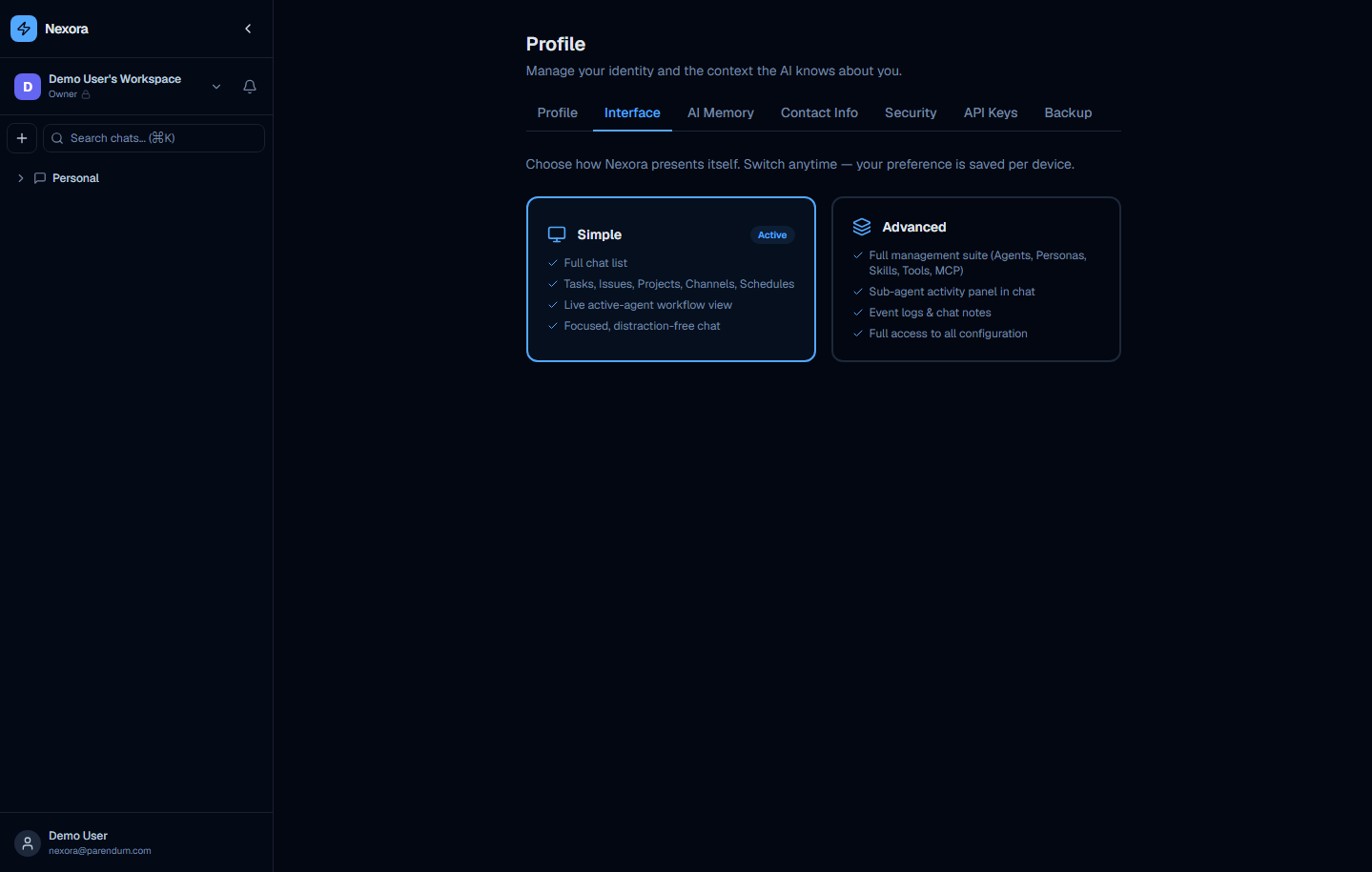
Simple mode
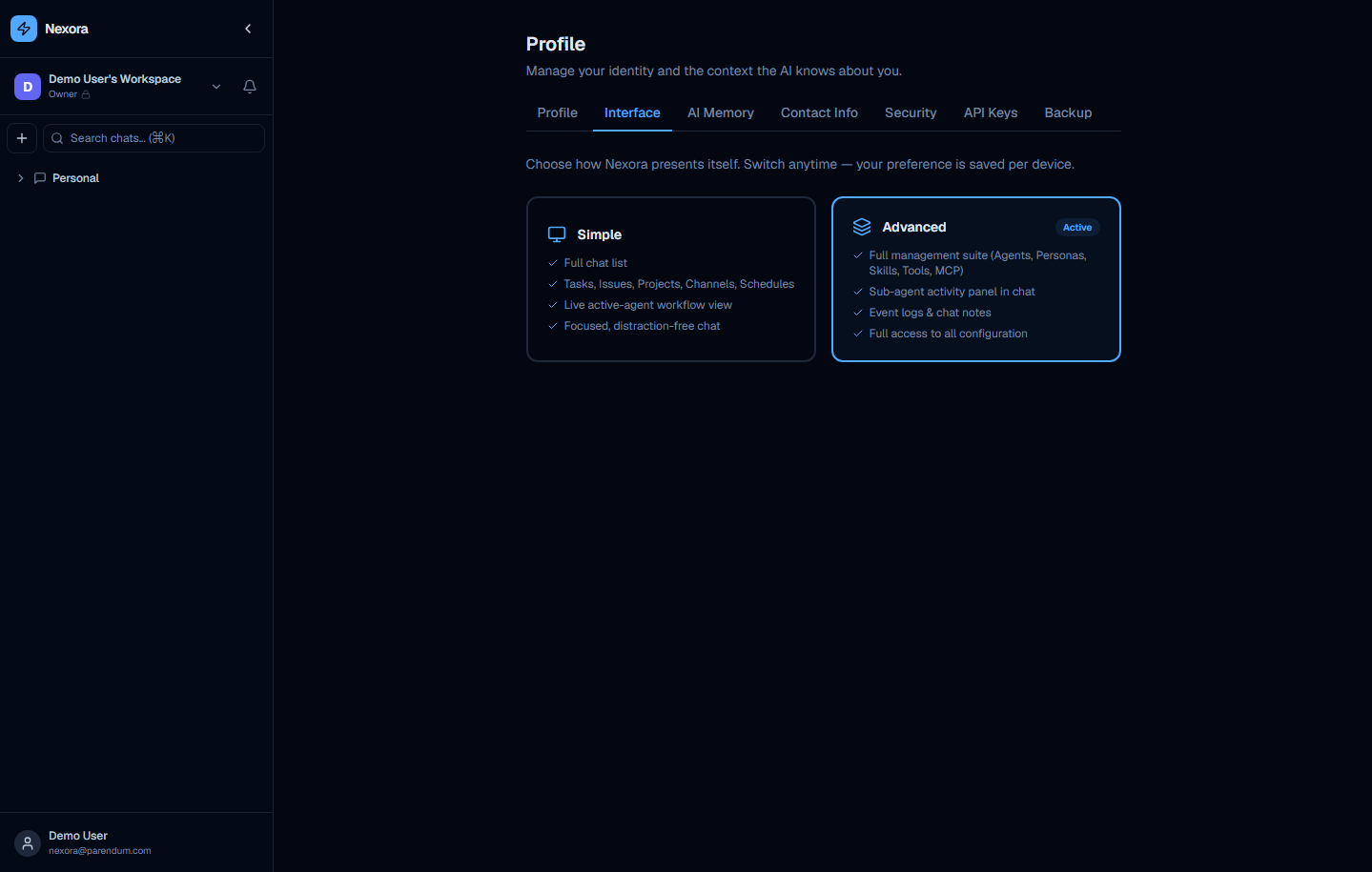
Nexora offers two UI modes:
| Mode | What it includes |
|---|---|
| Simple | Full chat list · Tasks, Issues, Projects, Channels, Schedules · Live active-agent workflow view · Focused, distraction-free chat |
| Advanced | Full management suite (Agents, Personas, Skills, Tools, MCP) · Sub-agent activity panel in chat · Event logs & chat notes · Full access to all configuration |
Simple mode is designed for users who primarily interact with agents through chat — project managers, product owners, or anyone who uses Nexora to get work done without needing to configure the platform.
Advanced mode exposes the full technical surface: the Agents builder, Personas library, Skills catalog, Tools library, and MCP server management. Use this when you are building or modifying agents, debugging sub-agent orchestration, or administering the platform.
Click either card to switch modes immediately. The change takes effect without a page reload.
Advanced mode can be withheld by an admin. If you belong to a permission group whose “Allow advanced UI mode” toggle is off, this tab stays locked to Simple mode. See the Organization Groups tab.
AI Memory tab
AI Memory stores personal context that is automatically injected into agent system prompts when you start a conversation. Use it to tell agents things about yourself that are always relevant:
- Your preferred programming languages and frameworks
- Code style preferences (e.g. “I prefer functional patterns over OOP”)
- Working context (e.g. “I am the lead engineer on the Nexora backend team”)
- Communication preferences (e.g. “Be concise, skip preamble”)
Memory entries are plain text notes. Add as many as needed. Agents read this context at the start of every session — you do not need to repeat yourself in each chat.
AI Memory is personal — other users in your organization do not see your memory entries. For shared agent context (e.g. “our stack is Next.js + FastAPI”), use a Persona assigned to the agent instead.
Contact Info tab
The Contact Info tab holds additional contact details associated with your account — useful for organizations that use Nexora to track internal contact information alongside agent work. Fields vary by deployment configuration.
Security tab
The Security tab has two sections:
Change password
A standard password-change form with three fields:
- Current password
- New password
- Confirm new password
Submit the form to update your password. Password strength requirements are enforced by the platform.
Two-factor authentication (TOTP)
Nexora supports TOTP-based 2FA (compatible with any authenticator app — Google Authenticator, Authy, 1Password, etc.).
Open Security tab
Navigate to /profile and click the Security tab.
Enable 2FA
Click “Enable two-factor authentication”. A QR code and a manual entry key are displayed.
Scan with your authenticator app
Open your authenticator app and scan the QR code, or manually enter the key. A 6-digit code will begin rotating every 30 seconds.
Confirm setup
Enter the current 6-digit code from your app into the confirmation field and click “Verify”. 2FA is now active on your account.
Sign in with 2FA
On future logins, after entering your email and password, you will be prompted to enter the current 6-digit code from your authenticator app before access is granted.
To disable 2FA, return to the Security tab and click “Disable two-factor authentication”. You will be asked to confirm your current password.
API Keys tab
The API Keys tab lets you create personal API keys for programmatic access to the Nexora API.
Each key has:
- A name you assign (e.g. “CI pipeline”, “local dev script”)
- A creation date
- Rotate and revoke buttons
This tab also holds a separate Marketplace API key field for connecting your instance to the Nexora Marketplace.
API keys are shown in full only once — at creation time. Copy and store the key securely before closing the creation dialog. If you lose a key, revoke it and create a new one.
API keys authenticate as your user account and inherit your organization membership and role permissions. They are suitable for scripts, CI/CD pipelines, and integrations that need to interact with the Nexora API on your behalf.
Backup tab
The Backup tab provides an export of your personal profile data — display name, avatar, AI memory, contact info, and API-key metadata. (Chat history is not included.) It also supports re-importing that data, and superusers get a full-system backup section here. Use this to retain a copy of your settings or to migrate between Nexora instances.