The Interface
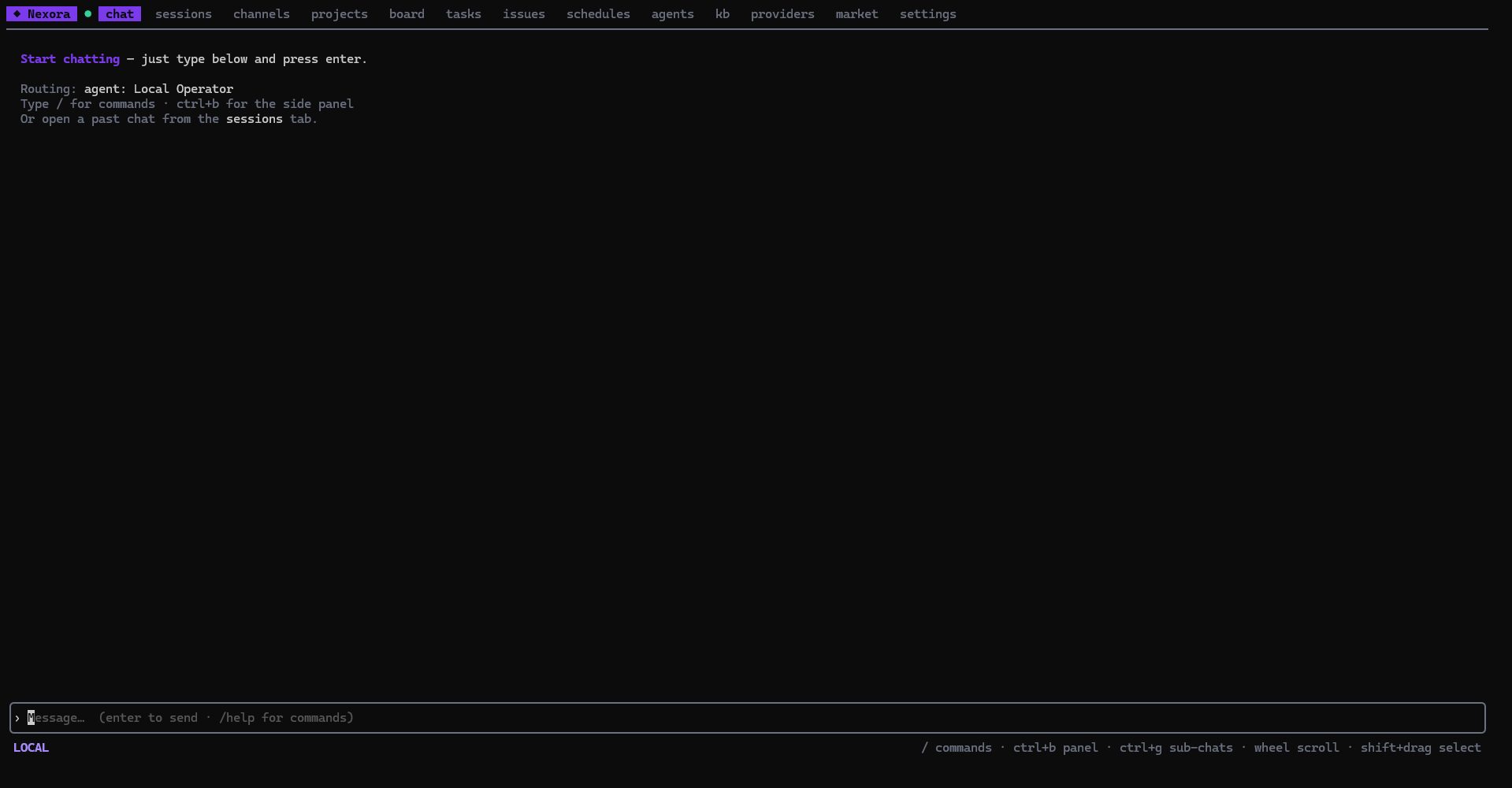
The TUI is a full-screen app. A tab bar runs across the top, the active screen fills the middle, and a status/help footer sits at the bottom. A small connection dot (green = connected, red = disconnected) shows whether the instance API is reachable.
Tabs
The top-level tabs mirror the web frontend:
| Tab | What it shows |
|---|---|
| chat | Streaming conversation with the current agent — messages, sub-agent activity, tool calls |
| sessions | Your chat sessions; open / delete / filter |
| channels | External conversations (e.g. Telegram) routed in via integrations — read & reply |
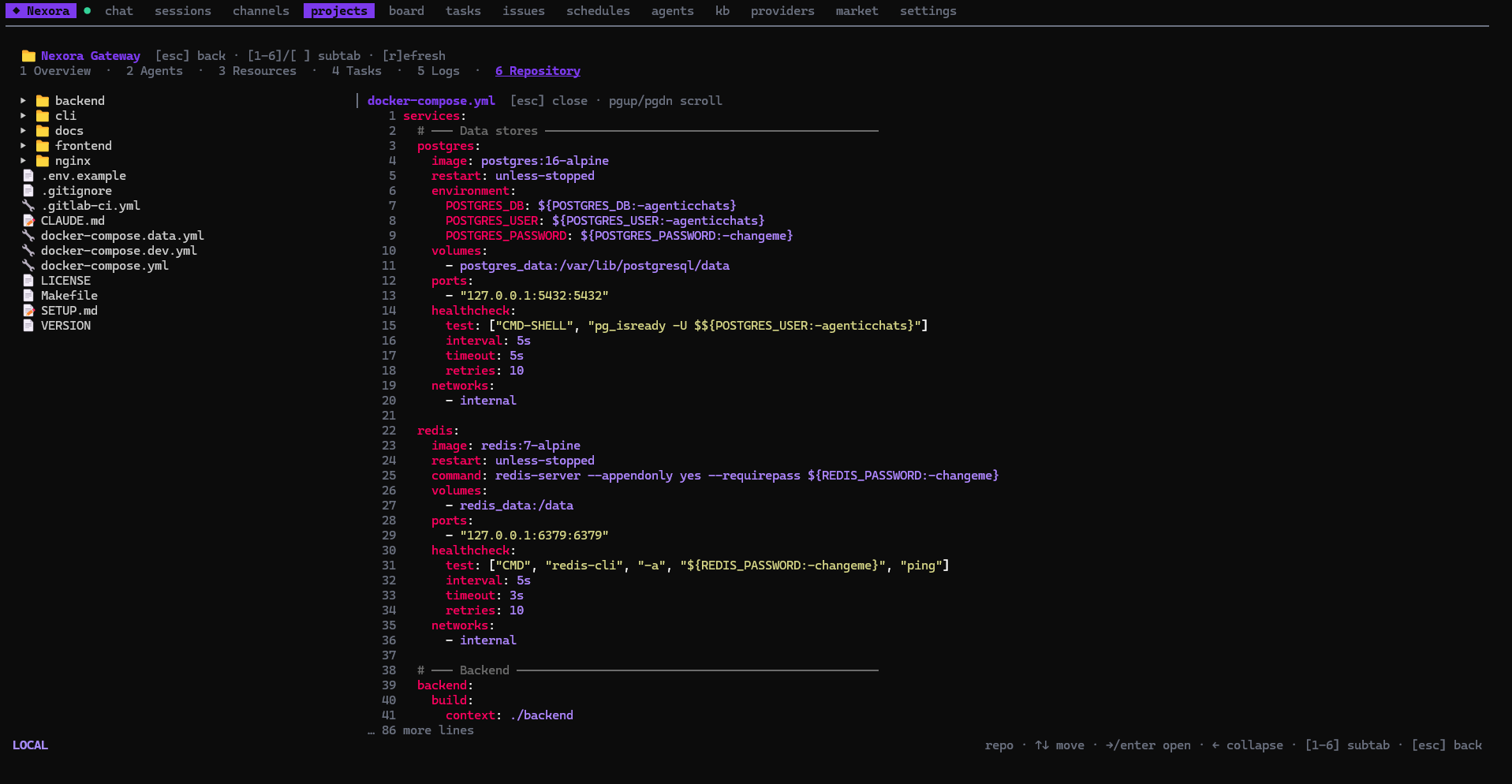
| projects | Projects with detail subtabs: file-tree repo browser, resources, agents, logs |
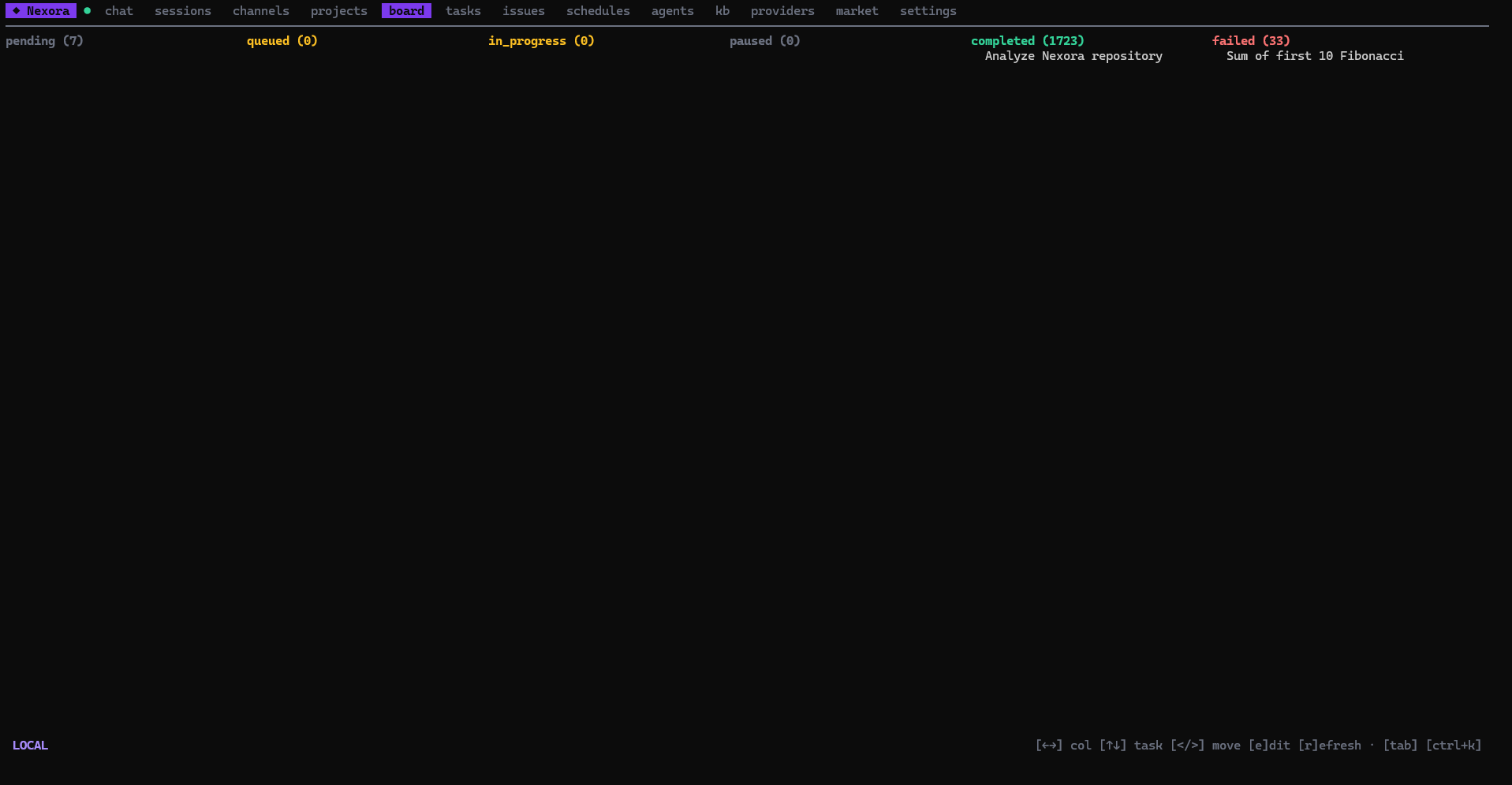
| board | Kanban board for the current project |
| tasks | Tasks / plan steps for the current chat |
| issues | Project issues — create / edit / open / close |
| schedules | Scheduled runs — create / edit / enable-disable / trigger |
| agents | Agents list — create / edit / delete; skills, tools, MCPs, persona |
| kb | Knowledge bases — upload files, ingest URLs, manage |
| providers | Provider accounts and chains |
| market | Marketplace — browse, view installed, install / uninstall |
| settings | Profile, accounts, org, API key, backup, integrations, interface |
On the market tab, packages are ranked to favor reputable, trending ones, and each carries a trust tier and warning level. Installing a package with an elevated or high warning (a new or low-track-record package) shows the third-party disclaimer and asks you to acknowledge the risk before it is imported into your instance — the same at-your-own-risk confirmation as the web UI. Trusted and standard packages install without the extra prompt. See Marketplace → Trust tiers and warnings.
Simple vs advanced mode
The interface has two modes, set in settings → interface (toggle with space on that subtab):
- Advanced (default) — every tab is shown in the header.
- Simple — a reduced header (chat · sessions · settings) for a compact main menu. Every other tab stays reachable through the command palette (
ctrl+k); a tab opened that way is added to the header while it’s active.
Simple mode keeps the in-chat side panels, just fewer top-level tabs — the same idea as the web’s compact layout.
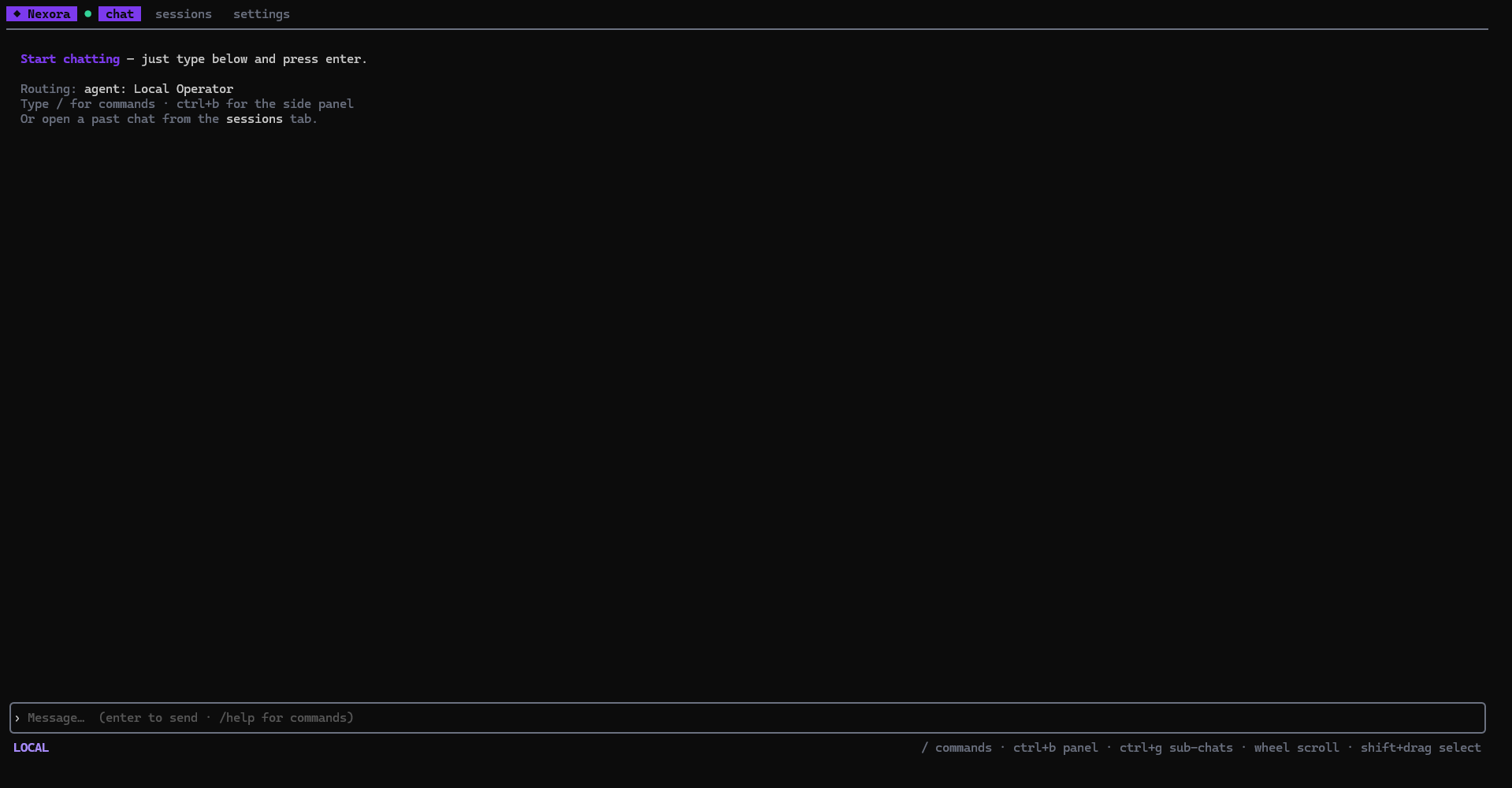
The connection dot reflects whether the instance API is reachable (green / red) — it is not the chat WebSocket state and not tied to the interface mode.
Chat panels
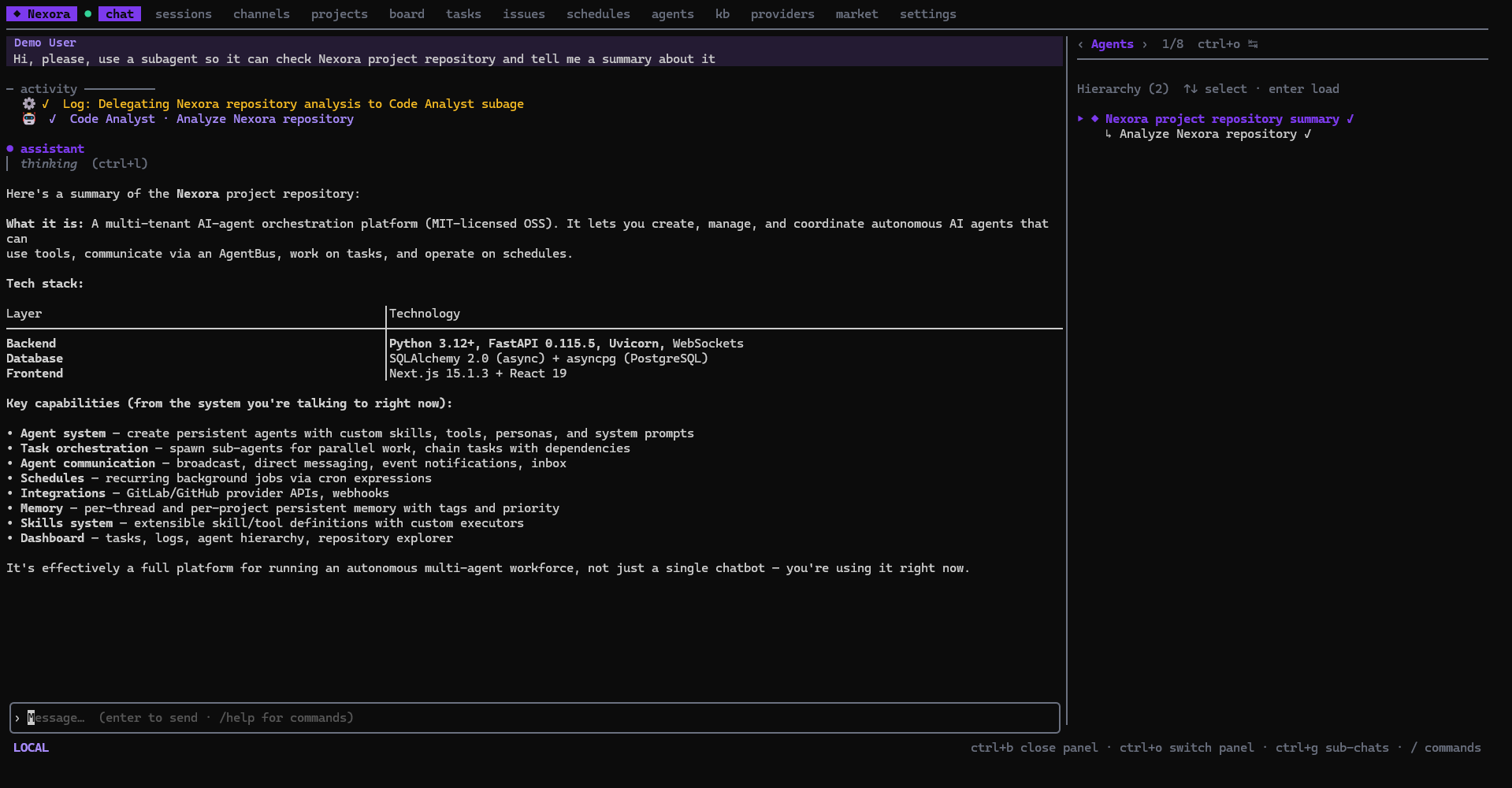
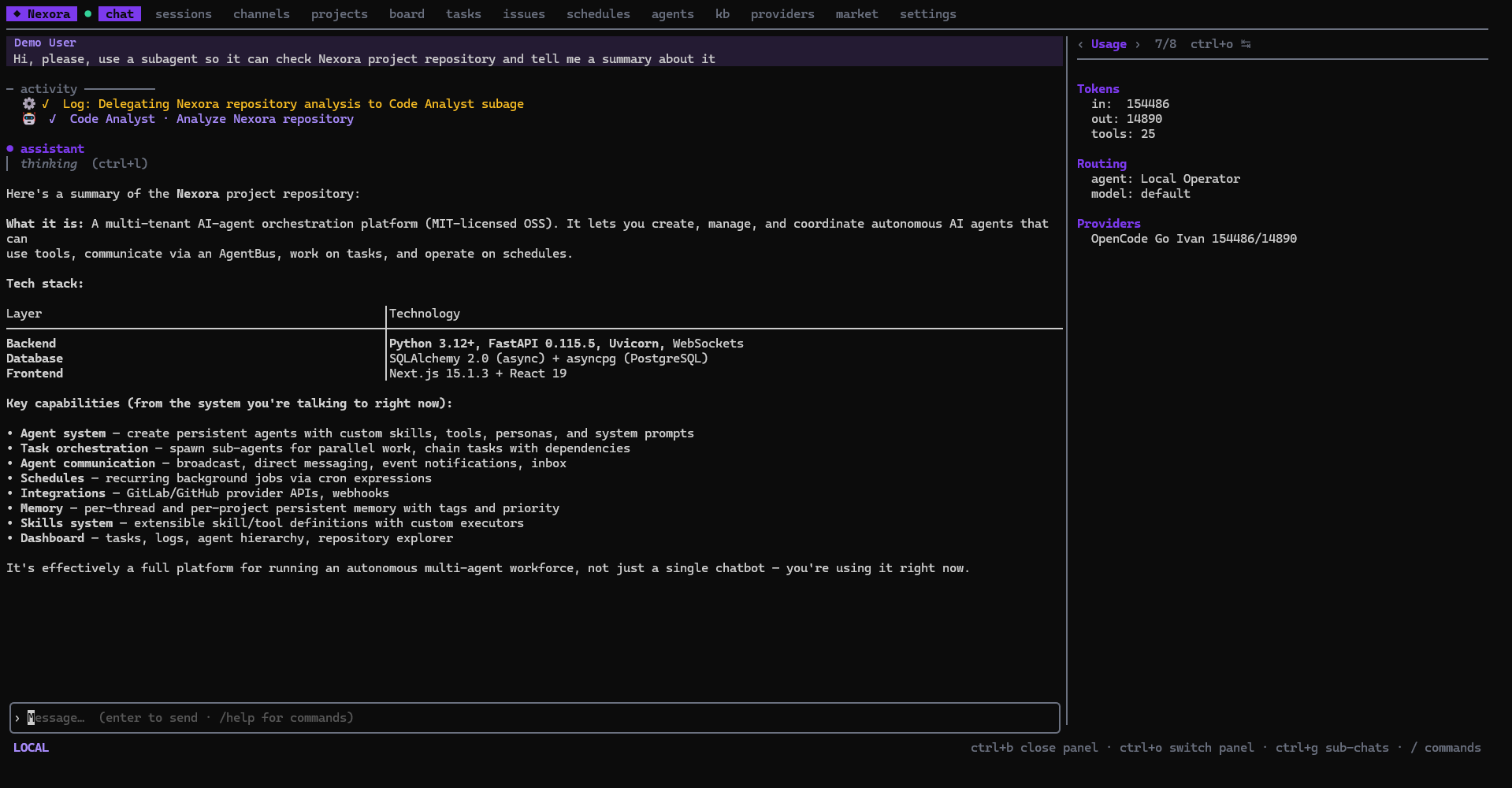
The chat screen has an optional sidebar with several panels. Toggle the sidebar with ctrl+b, cycle panels with ctrl+o:
| Panel | Shows |
|---|---|
| Agents | The chat’s agent hierarchy (agent → sub-agents) as a navigable tree |
| Tasks | Tasks for the current chat |
| Plan | Plan steps for the current chat |
| Notes | Notes attached to the chat |
| Files | Files attached to the chat |
| Logs | Activity logs for the chat |
| Usage | Token and tool usage for the chat |
| Info | Chat metadata — id, message / tool counts |
In simple mode the panel set is reduced to Agents · Tasks · Info.
Sub-chats (a sub-agent’s own conversation) are navigable with ctrl+g, which opens a picker of the chat’s spawned sub-agent chats plus a ← back to parent entry to climb back up the chat stack.
Command palette
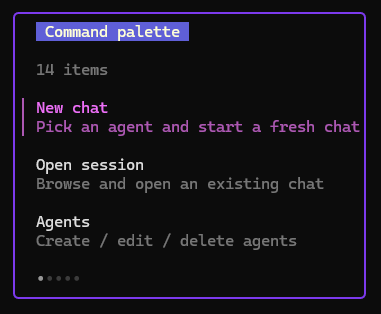
Press ctrl+k anywhere to open a fuzzy command palette — jump to any tab or run an action without leaving the keyboard. This is how you reach hidden tabs in simple mode.
The projects tab’s repo subtab renders the file tree with filetype icons and syntax-highlighted code:
The kanban board tab shows the current project’s tasks in columns:
Settings subtabs
The settings tab is split into subtabs, switched with number keys 1–9 (or [ ]):
- Profile — your account details (
eto edit) - Interface — simple / advanced mode (toggle with
space) - Memory — AI memory / notes (
eto edit) - Contact — contact info as Label=Value pairs (
eto edit) - Integrations — provider bot credentials (e.g. Telegram bot token) used by Channels —
nnew,eedit,ddelete - Devices — paired devices;
dto revoke - Telegram — Telegram link status
- Variables — tool credentials / environment variables (
nnew,ddelete) - Account — organization switcher (
o) and marketplace API key (k) - Usage — token / tool usage
- Backup — platform backup / restore, superuser only (
b)

Keyboard reference
Global:
| Key | Action |
|---|---|
tab / shift+tab | Next / previous visible tab |
ctrl+k | Command palette |
ctrl+c | Quit |
Chat:
| Key | Action |
|---|---|
/ | Slash command autocomplete (see Slash Commands) |
ctrl+b | Toggle sidebar panel |
ctrl+o | Switch sidebar panel |
ctrl+g | Open the sub-chat navigator — drill into a sub-agent or climb back to the parent |
ctrl+p | Pick a previous message |
ctrl+y | Copy last reply |
ctrl+l | Expand raw output of a local command |
pgup / pgdn, mouse wheel | Scroll the transcript |
shift+drag | Select text |
List screens generally use single-letter actions shown in the footer, e.g. n new, e edit, d delete, r refresh.
Real-time behavior
- Live streaming — assistant replies, thinking blocks, sub-agent spawns, and tool calls render as they arrive over the WebSocket.
- Multi-client sync — a message you send from the web UI, the mobile app, or Telegram appears in the TUI in real time (and vice-versa), de-duplicated so your own echo isn’t shown twice.
- Auto-reconnect — if the chat WebSocket drops, the TUI retries every second indefinitely (the status line shows
reconnecting…until it recovers). It stops only when auth has actually expired, in which case it tells you to re-login.